

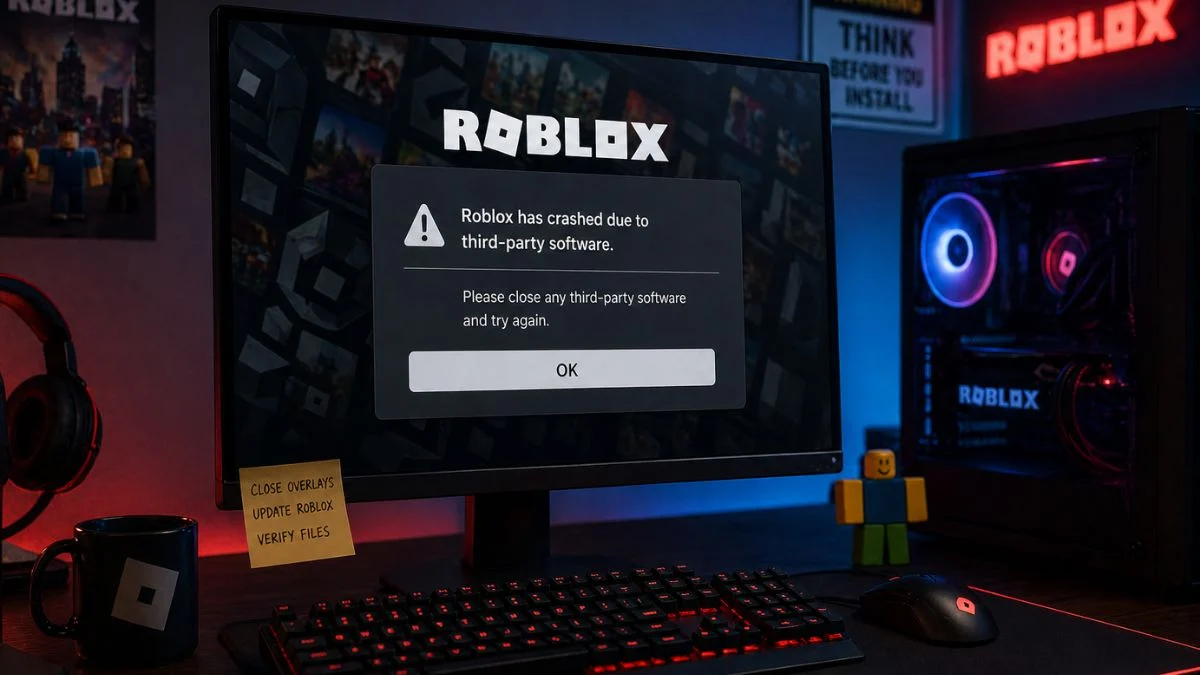
If Roblox has suddenly crashed with a message about third-party software interference, you are frequently not dealing with a virus or a broken game. This is Roblox’s built-in anti-cheat system flagging something on your device that it does not recognise or approve of. It can happen to completely innocent players, triggered by anything from an antivirus program to a Discord overlay or an alternate client. The good news is that most cases are fixable without wiping your PC. Always start with the simplest fixes first, such as updating Roblox, verifying your files, and closing overlays, before moving on to deeper solutions. Here is a full breakdown of every crash type and exactly how to sort it out.


What Does the Third-Party Software Warning Mean?
Roblox runs an anti-cheat system that monitors for software it considers incompatible or potentially harmful. When it detects something it does not approve of, it either crashes the game or blocks it from launching entirely. Roblox confirmed that modified versions of its app and any software that alters how Roblox works are against its Community Standards, and repeated violations can result in account warnings, suspension, or a permanent ban in more serious cases.
However, the system is not perfect. Legitimate software such as antivirus programs, alternate Discord clients, FPS unlockers, browser extensions, and game overlays can all trigger the warning even when no cheating is involved.

All Roblox Crash Types and What They Mean
| Crash Type | Message Shown | Cause |
| Badware Detected | “Roblox has crashed due to incompatible software: [file path]” | A specific program on your device is conflicting with Roblox |
| Third-Party Software | “Roblox has crashed due to third-party software. Please perform a Windows clean boot” | Background software interfering with Roblox |
| Process Suspended | “Roblox was stopped. Please ensure third-party software does not interfere” | Another program stopped Roblox from running |
| Modified Version | “We noticed a modified version of Roblox was used on a device you recently played on” | An unofficial Roblox client was detected |
| Emulator Detected | “We don’t allow emulators for accounts without place edit access” | Playing on BlueStacks, NoxPlayer, or similar |
| Rooted/Jailbroken Device | “We don’t allow rooted devices” | Device has been rooted or jailbroken |
| Virtual Machine | “Roblox cannot run inside of a virtual machine” | Running Roblox inside a VM without GPU passthrough |
| Timeout Failure | “Roblox has timed out. Please restart your client” | App needs a restart |
| Boot Integrity | “Critical system files are corrupt. Roblox cannot run” | Windows is running in debug mode |
| OBS In-Game Capture | “OBS in-game capture is known to have issues with Roblox” | OBS set to in-game capture mode instead of display capture |
Start Here: Quick Fixes to Try First
Before going through the full troubleshooting steps below, try these quick checks first. They resolve the majority of cases without any deep system changes needed:
- Update Roblox to the latest version, as some crashes are caused by Roblox’s own updates clashing with certain software
- Verify your Roblox files through the official launcher to repair any corrupted game data
- Close all overlays before launching Roblox, including Discord overlay, Nvidia GeForce Experience overlay, MSI Afterburner, RivaTuner, and Xbox Game Bar, as these are among the most frequent triggers
- Restart Roblox if you see a timeout message, as a simple relaunch resolves it in most cases
- Reinstall Roblox using the official installer from roblox.com if the issue persists after the above steps

Common Software That Triggers the Warning
These are the most frequently reported causes across PC and mobile:
- Alternate Discord clients or unofficial versions
- Discord overlay, Nvidia GeForce Experience overlay, Xbox Game Bar, MSI Afterburner, and RivaTuner (all commonly flagged)
- FPS unlockers
- Browser extensions
- Auto-clickers
- Other game launchers running in the background
- Antivirus or anti-malware programs
- Modified or unofficial Roblox clients
How to Fix the Third-Party Software Warning on PC
Step 1: Disable Overlays
Overlays are one of the most common and overlooked causes of this warning. Before anything else, disable the following if you have them installed:
- Discord: Go to Settings, then Overlay, and turn off the in-game overlay
- Nvidia GeForce Experience: Open the app, go to Settings, and disable the in-game overlay
- Xbox Game Bar: Go to Windows Settings, then Gaming, then Xbox Game Bar, and turn it off
- MSI Afterburner and RivaTuner: Close both applications entirely before launching Roblox
Step 2: Verify or Reinstall Roblox
If overlays are not the issue, verify your Roblox installation through the official launcher to check for and repair corrupted files. If that does not help, do a full uninstall and reinstall using the official version from roblox.com on PC or from the Google Play Store or Apple App Store on mobile. Make sure no other applications are running in the background while you do this.
Step 3: Run Roblox in Windows Safe Mode
Running Roblox in Safe Mode helps confirm whether a background driver or service is the root cause. If Roblox works fine in Safe Mode but crashes normally, a background application is responsible. You can then re-enable programs one by one to find the specific offender.
Step 4: Perform a Windows Clean Boot
A clean boot disables all non-essential software and startup programs, which helps isolate the conflict. Here is how to do it:
- Press Windows Key + R to open the Run dialog
- Type msconfig and press Enter
- Go to the Services tab
- Check Hide all Microsoft services
- Click Disable all
- Switch to the Startup tab
- Click Open Task Manager
- Disable all startup items
- Close Task Manager and System Configuration
- Restart your computer and try launching Roblox
Step 5: Sort Out Your Antivirus
Your antivirus may flag Roblox as a false positive. To fix this:
- Update your antivirus to the latest version first, as the issue may already be patched
- If updating does not help, add Roblox to your exceptions list
- On Windows, Roblox files are stored at: C:\Users(Your Windows Username)\AppData\Local\Roblox
- Add that folder path as an exclusion in your security program
Step 6: Check Your Firewall Settings
Your firewall may be blocking Roblox services. To allow Roblox through:
- Open Windows Control Panel
- Go to System and Security
- Open Windows Firewall settings
- Add Roblox to the list of permitted programs with unrestricted access
Step 7: Check Your Router Ports
Blocked connection ports can affect Roblox performance and cause crashes. Roblox uses the UDP port range 49152 to 65535. Keeping all of these ports open allows Roblox to connect to your router correctly. If you are unsure how to open these ports, contact your internet service provider and ask them to open or activate that port range.
Specific Fixes by Crash Type
Modified Version of Roblox
On PC (Windows):
- Delete the modified version of Roblox
- Reinstall the official version from roblox.com
- Close all other applications before launching
- If the warning appears again, restart in Safe Mode to identify which background app is interfering
On Mobile (iOS and Android):
- Uninstall the modified version
- Reinstall the official version from the Google Play Store or Apple App Store
On macOS:
- Delete the modified version
- Reinstall from roblox.com
Emulator Detected
Roblox does not allow emulators such as BlueStacks or NoxPlayer for standard accounts. You need to switch to a physical Android or iOS device to play. The only exception is if your account has Place Edit Access for testing your own experiences in Roblox Studio.

Rooted or Jailbroken Device
Roblox does not support rooted Android or jailbroken iOS devices. Note that this restriction applies to mobile only. To fix this:
- Android: Flash your device’s official stock firmware, or use a root management app like Magisk to unroot
- iOS: Restore your device to factory settings through iTunes or Finder to reinstall the latest official iOS
Back up your data before proceeding, as these steps often involve a factory reset.
Virtual Machine
If you run Roblox inside a virtual machine, you need GPU passthrough enabled. This gives the virtual machine direct access to your physical GPU. Steps include enabling virtualization extensions in your BIOS settings (Intel VT-x or AMD-V) and configuring GPU passthrough within your VM software.
OBS In-Game Capture
Switch from in-game capture to Display Capture in OBS. Open OBS, go to Sources, click the plus icon, select Display Capture, choose your monitor, and adjust settings as needed.
Boot Integrity / Debug Mode
- Press Windows Key + R, type msconfig, and press Enter
- Select the Boot tab and click Advanced options
- Uncheck the Debug checkbox
- Click OK, then Apply, then OK again
- Restart your computer

What to Do If Nothing Works
If you have tried all of the above and Roblox still will not launch, contact Roblox Support directly through the support page at roblox.com. Some users have also reported that the issue resolved itself after a few days following a Roblox update, suggesting the conflict can sometimes come from Roblox’s own system rather than anything on your device. Checking the Roblox Developer Forum is also worth doing, as other players often report and discuss the same issues in real time.


Leave a Reply