

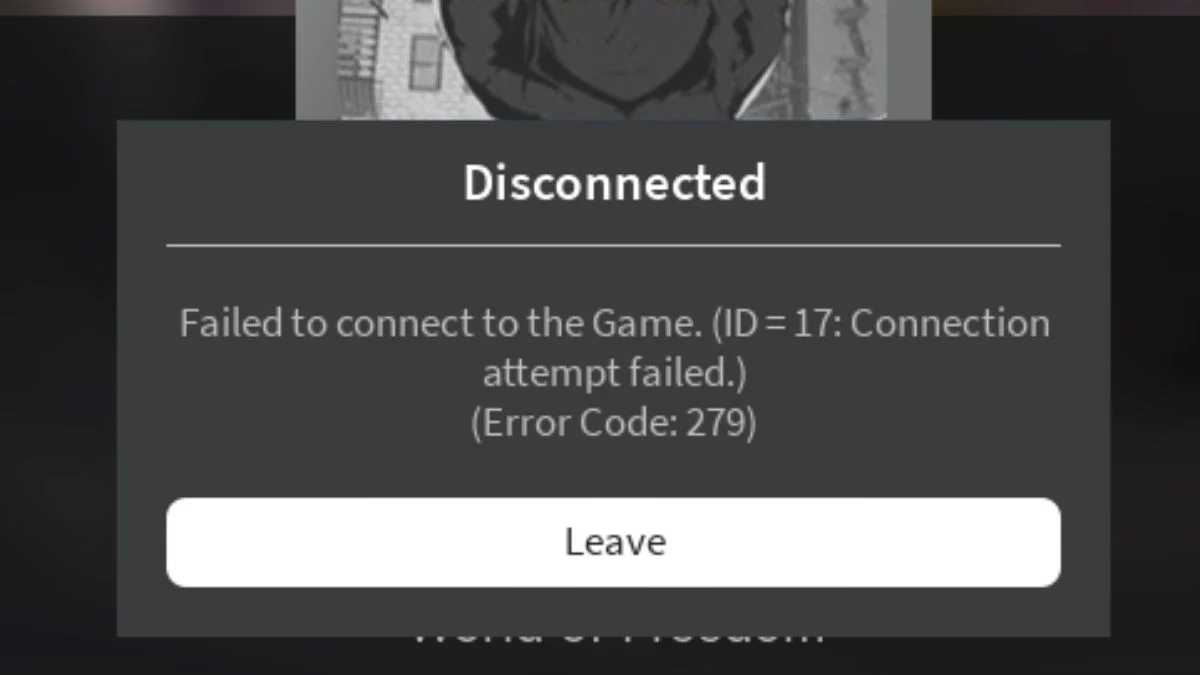

Few things are more frustrating than loading up your favourite Roblox experience and getting hit with Error Code 279 right before you get in. This connection error is one of the most commonly reported issues across the Roblox community, and it blocks players from joining game servers entirely. The good news is that it is almost always fixable with the right steps, and it is worth knowing upfront that Error Code 279 is a connection issue and has nothing to do with your account being banned or restricted.
What Is Roblox Error Code 279?
Error Code 279, also displayed as ID=17: Failed to Connect to the Game or Connection Attempt Failed, appears when the Roblox client on your device cannot establish a stable connection with the game server. The error typically appears during the loading screen, preventing you from entering the experience at all.
It is worth noting how this error differs from others you may encounter:
| Error Code | When It Appears | Cause |
| Error Code 279 / ID=17 | Before entering a game | Client cannot connect to the game server |
| Error Code 277 | Mid-session | Lost connection to the server after joining |
| Error Code 267 | Mid-session | Kicked by in-game script or anti-cheat system (not connection-related) |

What Causes Roblox Error Code 279?
| Cause | Description |
| Firewall or antivirus blocking Roblox | Security software preventing outbound Roblox traffic is the most common cause |
| Blocked or closed UDP ports | Roblox requires UDP ports 49152-65535 to be open to connect properly |
| Unstable or slow internet connection | Roblox recommends a minimum stable connection speed of 4-8 Mbps |
| VPN or proxy interference | VPNs and proxies can disrupt the connection path to Roblox servers |
| Corrupted Roblox files or cache | Damaged installation files can prevent the client from connecting |
| Browser extensions or ad-blockers | Add-ons can block Roblox from loading fully in browser versions |
| Roblox server outage | If Roblox servers are down, the error can appear for all players simultaneously |
| Strict router or modem firewall settings | A router set to the highest security level can block Roblox traffic |
| Incorrect date and time settings | Mismatched device time can prevent the client from syncing with servers |
| Game-specific server issue | Certain experiences with teleports, anti-cheat, or stale server IPs can trigger 279 on the server side |
| Modified Fast Flags | Experimental client settings, especially those affecting connection MTU values, can block connections |
Step 1: Check If Roblox Servers Are Down
Before changing anything on your device, check whether the problem is on Roblox’s side first. Check the official Roblox status page at status.roblox.com for the most accurate outage information, or use DownDetector.com as a secondary check. If outages are confirmed, the only option is to wait for Roblox to restore service. Local fixes will not help if the servers themselves are offline.
Additionally, if the error only occurs in one specific experience but not others, the issue may be server-side rather than on your end. In that case, refresh the experience page and try joining a different server rather than using the direct join button, as the original server IP may have gone stale. You can also report the issue to the game’s developer if the problem persists across multiple servers within the same experience.
Step 2: Restart Your Router and Switch Networks
A simple restart resolves a large number of connection issues. Power off your router by pressing its power button or unplugging the cable. Wait at least one to two minutes before turning it back on, then give it a few minutes to fully reconnect before launching Roblox again. Additionally, restart the device you play on before trying again.
If restarting the router does not help, test Roblox on a completely different network such as a mobile hotspot to rule out whether the issue lies with your home network or ISP routing. If Roblox works on the hotspot but not on your home network, the problem is with your home internet setup or ISP.
A quick note on browser versus desktop: If you currently play Roblox through a browser, switching to the dedicated desktop app significantly reduces the chance of running into Error Code 279. The desktop app handles connections more reliably than the browser version, so making that switch is strongly recommended before working through the steps below.

Step 3: Update Your Roblox Client
Ensure that Roblox is fully updated on your device before attempting other fixes. Auto-updates sometimes fail silently, and running an outdated client can cause connection issues. If in doubt, a full reinstall (covered in Step 10) will guarantee you have the latest version installed.
Step 4: Allow Roblox Through Your Firewall
Firewall software is the most frequent cause of Error Code 279 on PC. To allow Roblox through Windows Defender Firewall:
- Step 1 — Open the Start Menu and search for Windows Defender Firewall
- Step 2 — Select Allow an app or feature through Windows Defender Firewall
- Step 3 — Find Roblox in the list and ensure the checkbox is ticked
- Step 4 — Click OK to save
If you use third-party antivirus software, add Roblox as an exception in its settings as well. Additionally, try running Roblox as Administrator by right-clicking the Roblox shortcut and selecting Run as Administrator, which bypasses certain permission-related firewall conflicts.
For Mac users, go to System Settings, then Privacy and Security, then Firewall, and ensure Roblox.app has permission to allow incoming connections.
Step 5: Open the Required UDP Ports
Roblox requires UDP ports 49152 through 65535 to connect to game servers. If your router or firewall blocks these ports, the connection will fail. Access your router settings through its admin panel and ensure this port range remains open. If your router is set to Strict NAT, switching it to Moderate can resolve the issue immediately.
Note that some ISPs, particularly those using CGNAT (Carrier Grade NAT), may block high UDP port ranges at the network level even if your router settings appear correct. If you suspect this is the case, contact your ISP to request a public IP address, or test using a mobile hotspot as a workaround.

Step 6: Disable VPNs and Proxies
If you currently have a VPN or proxy active, disable it before launching Roblox. These tools can interfere with the connection path and cause Error Code 279 even on otherwise healthy connections. After disabling the VPN, restart Roblox and attempt to rejoin.
However, in rare cases where your ISP or regional routing is causing the issue, some players have resolved the error by temporarily enabling a reputable VPN to change their routing path. This is not the primary fix but is worth trying if all other standard steps fail.
Step 7: Flush Your DNS Cache and Switch DNS (PC)
Flushing your DNS cache clears outdated or corrupted network data that can cause connection failures. To flush DNS on Windows:
- Step 1 — Press Win + R, type CMD, and press Enter to open Command Prompt as Administrator
- Step 2 — Type ipconfig /flushdns and press Enter
- Step 3 — Restart Roblox after the command completes
Additionally, switching to a more reliable DNS server can improve connection stability. Set your DNS to Google Public DNS by using 8.8.8.8 as the primary and 8.8.4.4 as the secondary in your network adapter settings.
Step 8: Disable Browser Extensions and Ad-Blockers
If you play Roblox through a browser rather than the desktop app, browser extensions and ad-blockers are a common cause of this error. Disable all active extensions and try loading Roblox again. If the error resolves, re-enable extensions one by one to identify the conflict.
Additionally, try switching to a different supported browser such as Microsoft Edge, Google Chrome, or Mozilla Firefox, or create a fresh browser profile with no extensions installed and test Roblox there. For a more permanent fix, switching to the Roblox desktop app removes this category of issue entirely.
Step 9: Clear Roblox Cache (PC)
Before attempting a full reinstall, try deleting the Roblox cache folder as a lighter fix. On Windows, open File Explorer, navigate to %localappdata%\Roblox\Cache, and delete the contents of that folder. On Mac, clear the cache by navigating to ~/Library/Caches/Roblox and deleting the folder contents. This clears accumulated data without requiring a full reinstallation.
Step 10: Reset Fast Flags (Advanced PC Fix)
If Error Code 279 persists after trying every other step and you have previously tinkered with Roblox’s experimental Fast Flags settings, those modified flags may be interfering with the connection. Flags that affect connection MTU values, such as ConnectionMTUSize or RakNetMtuValue, are known to cause stubborn 279 errors when set incorrectly.
To reset them, navigate to %localappdata%\Roblox on Windows and look for the file GlobalBasicSettings_13.xml. You can either delete this file entirely (Roblox will regenerate it with default settings on next launch) or open it and manually remove any custom flag entries you have added. After resetting, restart Roblox and attempt to join again.
This step only applies if you have previously modified Fast Flags through Roblox Studio or manually edited the settings file. If you have never done this, you can skip it.

Step 11: Reinstall Roblox
If the steps above have not resolved the error, reinstalling Roblox will clear any corrupted files preventing the connection. Follow the platform-specific steps below:
Windows
- Step 1 — Open Settings, go to Apps, find Roblox, and click Uninstall
- Step 2 — Press Win + R, type CMD, open Command Prompt as Administrator, type cd AppData\Local and press Enter, then type rmdir /s Roblox and press Enter, then enter Y to confirm
- Step 3 — Restart your PC and reinstall Roblox from the official website
Mac
- Step 1 — Drag the Roblox app from Applications to the Trash, or right-click and select Move to Trash, then empty the Trash
- Step 2 — Navigate to ~/Library/Caches/Roblox and delete that folder as well
- Step 3 — Restart your Mac and reinstall from the official Roblox website
- Step 4 — Go to System Settings, then Privacy and Security, then Firewall, and confirm Roblox has permission after reinstalling
iOS
- Step 1 — Press and hold the Roblox app icon and tap Delete App
- Step 2 — Reinstall from the App Store
- Step 3 — Verify that your device’s date and time are set correctly
- Step 4 — Disable Low Power Mode in Settings, as it can restrict background data and interfere with connections
- Step 5 — If the error continues, toggle between Wi-Fi and mobile data to test which connection is more stable
Android
- Step 1 — Go to Settings, then Application Manager, find Roblox, and tap Uninstall
- Step 2 — Reinstall from the Google Play Store
- Step 3 — Check that date and time are correct in your device settings
- Step 4 — Disable any battery-saving modes that restrict background data, as these are a common cause of connection failures on Android
Amazon Fire OS
- Step 1 — Swipe from the top of the screen, go to Settings, then Apps and Games, then Manage All Applications
- Step 2 — Select Roblox, tap Force Stop, then Uninstall
- Step 3 — Reinstall from the Amazon Store and verify date and time settings
Platform-Specific Quick Reference
| Platform | Priority Fixes |
| Windows | Allow through firewall, run as Administrator, flush DNS, switch to Google DNS, clear cache, reset Fast Flags if applicable, reinstall |
| Mac | Allow in Privacy and Security Firewall settings, clear ~/Library/Caches/Roblox, reinstall |
| iOS | Disable Low Power Mode, switch between Wi-Fi and mobile data, check date and time, reinstall |
| Android | Clear cache, disable battery-saving modes, check date and time, reinstall |
| Xbox | Check NAT type in network settings and aim for Open or Moderate, clear persistent storage under Settings, use a wired ethernet connection for best results |
| Browser | Switch to the desktop app first; if using browser, disable ad-blockers, switch browsers, create a new profile without extensions |

When to Contact Roblox Support
If you have worked through every step above and Error Code 279 persists, contact Roblox Customer Support directly. Remember that this error is purely a connection issue and does not indicate any problem with your account. Include the following when submitting your report:
- Your Roblox username
- The exact error message including the ID=17 reference
- Your device model and operating system version
- A full description of the steps you already tried
- Any recent changes to your device or network
You can reach Roblox Customer Support at roblox.com/support. The official help article for this specific error is also available at en.help.roblox.com under the Error Code 279/ID=17 section for the most current official guidance.


Leave a Reply