

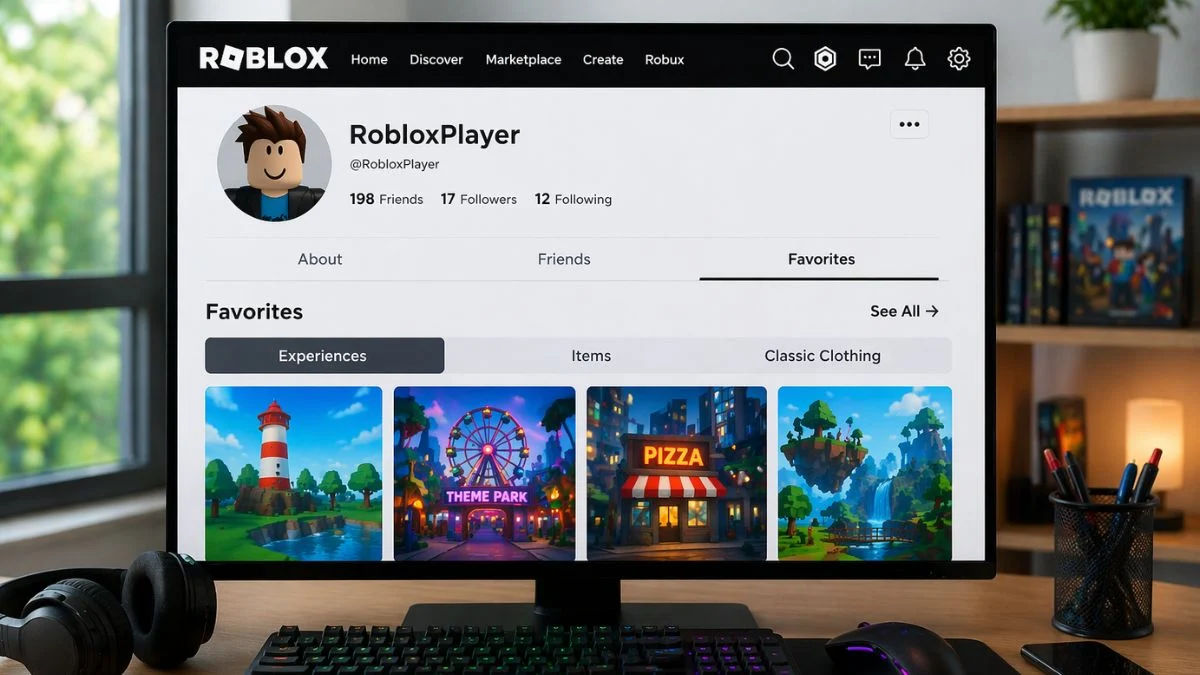
Roblox keeps your saved games and items tucked away in a Favorites section — here is exactly how to reach it across every platform, including after the recent interface changes that have left plenty of players scratching their heads.
Why Players Cannot Find Their Favorites Anymore
If you have been playing Roblox for a while, you probably remember the old three-dot shortcut on your profile that brought up your Favorites instantly. However, recent updates to the home page and profile layout changed where that option lives, and many players report the feature now feels hidden rather than accessible. The good news is that your Favorites are still there — you just need to know where to look.

Understanding Favorites Categories on Roblox
Before diving into the steps, it helps to know that Roblox organises your Favorites into separate tabs rather than one combined list. When you open your Favorites, you typically land on one tab by default and need to switch manually to see everything else.
| Tab | What It Contains |
| Experiences | Games and places you have saved |
| Items | Avatar clothing, accessories, and marketplace items |
| Classic Clothing | May appear for some accounts as a separate sub-section |
Switching between these tabs after opening Favorites ensures you see all your saved content, not just one category.
How to See Your Favorites on Roblox (PC)
- Standard method:
- Step 1: Log into your Roblox account on your browser or desktop app.
- Step 2: Select the three-line menu located in the top-left corner of the page.
- Step 3: Navigate to the Profile tab from the menu.
- Step 4: Click the three dots on the right side of your profile.
- Step 5: Select Favorites from the dropdown and your saved content will appear, organised by tab.
Faster alternative (scroll method):
Go to your Profile by clicking your username or avatar, then scroll down past your About section, avatar showcase, and Friends list. Your Favorites section appears directly on the page with a See All button for the full list.
Power user shortcut:
You can also access your Favorites directly via browser by navigating to roblox.com/users/[YourUserID]/favorites — replace [YourUserID] with the numeric ID visible in your profile URL.
Important: Your Favorites section only shows content if you have already saved at least one item or experience. If the section appears greyed out, add something to your Favorites first and then revisit.

How to See Your Favorites on Roblox (Mobile)
Standard method:
- Step 1: Log into your Roblox account on the mobile app.
- Step 2: Tap the three dots located in the bottom-right corner of the screen.
- Step 3: Navigate to the Profile tab.
- Step 4: Scroll down and tap View Full Profile.
- Step 5: Tap the three dots on the right side of your profile page.
- Step 6: Select Favorites and switch between tabs to view Experiences and Items separately.
Faster alternative:
On some app versions, you can tap your profile picture or icon in the top-left corner directly, then scroll down your profile page until the Favorites section appears without needing the three-dot menu at all.
How to See Your Favorites on Roblox (Console)
Console navigation works slightly differently from PC and mobile. Here is how to reach your Favorites on Xbox or PlayStation:
| Platform | Steps |
| Xbox | Home → Continue Playing → Press X (View All) → Navigate across to Favorites |
| PlayStation | Home → Continue Playing → Press Square (View All) → Navigate across to Favorites |
Alternatively, on both consoles you can scroll all the way to the bottom of the Roblox home page where a dedicated Favorites row sometimes appears near or below the Continue Playing section. However, the full list via your Profile is the most reliable method if the row does not appear on your home page.
How to Add Something to Your Favorites on Roblox
Before you can view your Favorites, you need at least one saved item or experience. Here is how to add content on each platform:
PC or Browser: Open the game or item page you want to save and click the star icon near the title or thumbnail. This works for both game experiences and avatar items in the Marketplace or Avatar Editor.
Mobile: Open the game or item page, tap the three-dot menu, and select Favorite from the options.
Console (Xbox or PlayStation): Highlight the game or experience on the home page, search results, or Continue Playing section. Press the Menu button (three lines on Xbox, Options on PlayStation) and select Favorite from the context menu. The star icon will fill to confirm it has been saved.

How to Unfavorite a Game or Item on Roblox
PC and Mobile:
- Step 1: Navigate to your Favorites section using any of the methods above.
- Step 2: Click or tap the game or item you want to remove.
- Step 3: Locate the star icon near the title or thumbnail on that page.
- Step 4: If the star appears yellow or filled, that means it is currently saved. Click or tap it once to remove it. The star turns grey to confirm the item is no longer in your Favorites.
Console: Open the game or item from your Favorites list, press the Menu button, and select Unfavorite from the context menu to toggle it off.
Worth knowing: Roblox does not currently offer a bulk unfavorite option. You need to remove saved content one item at a time.
Why Can’t You Favorite a Game on Roblox?
If the Favorite option is not working for you, one of these reasons is likely the cause:
| Reason | Fix |
| Not logged in | Log into your account first — Favorites only work when signed in |
| Child or under-13 account | Parents must adjust restrictions via account.roblox.com under Privacy settings |
| Private or unlisted game | Some games do not support Favoriting if the developer has restricted access |
| Sync delay | A newly saved item can take 10 to 30 seconds to appear — refresh the page or app and check again |
| Favorites row missing on home page | The home page row is personalised and may not appear — use the full Profile method instead |
| Platform bug | Refresh the page, restart the app, or try switching between the browser and app versions |
If none of these fixes work, visit the Roblox status page to check whether a platform-wide issue is currently affecting Favorites.

Quick Reference: How to Find Favorites on Roblox
| Platform | Quickest Path to Favorites |
| PC / Browser | Menu → Profile → Three dots → Favorites |
| PC Shortcut | Profile page → Scroll down → See All |
| PC Direct URL | roblox.com/users/[YourUserID]/favorites |
| Mobile | Three dots (bottom-right) → Profile → View Full Profile → Three dots → Favorites |
| Mobile Shortcut | Profile icon (top-left) → Scroll down to Favorites |
| Xbox | Home → Continue Playing → X (View All) → Favorites |
| PlayStation | Home → Continue Playing → Square (View All) → Favorites |
Note: Roblox updates its interface frequently. If any of these steps look slightly different on your device, check the official Roblox Help Center for the latest navigation guidance.


Leave a Reply