

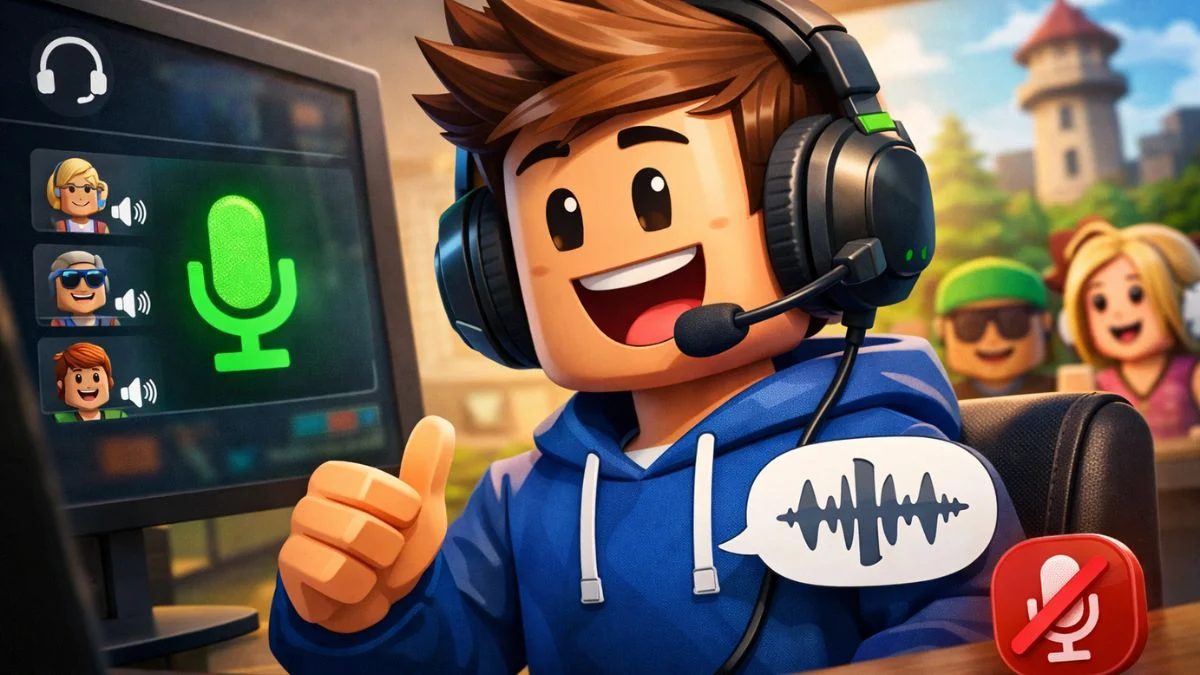
Want to chat with your squad using your actual voice instead of typing? Voice Chat on Roblox lets you communicate naturally with other players, making your gaming sessions way more immersive. However, getting it set up can be tricky if you don’t know the requirements. Let’s break down exactly how to turn on Voice Chat on Roblox and fix common issues.
What You Need Before Getting Started
Before you can enable Voice Chat in Roblox, you’ll need to meet these requirements:
Age Requirements:
- You must be 13 years or older
- Complete an age verification process
Platform Availability: Voice Chat works on Desktop, Mobile, VR, and PlayStation. Additionally, you can only set up Voice Chat through the Roblox mobile app, desktop app, or Roblox.com—not through the browser version.
Regional Restrictions: Voice Chat is available in specific countries including the United States, United Kingdom, Canada, Australia, and many others. If you’re not in a supported region, you’ll need ID Verification to access the feature.

How to Turn On Voice Chat on Roblox (2026 Method)
Step 1: Complete Age Verification: First, you need to verify your age through one of these methods:
- ID Verification (recommended)
- Facial Age Estimation
Note that phone verification is no longer valid for accessing Voice Chat following recent updates.
Step 2: Enable Voice Chat in Settings: Once you’ve completed age verification:
- Open your Roblox Communication settings
- Locate the Voice Chat toggle (it’s not enabled by default)
- Switch it to “On”
Step 3: Join Voice in Experiences After enabling Voice Chat, join any experience that supports it. You’ll see a headphone icon in the upper left corner of your screen. Click this icon to connect to Voice Chat within that specific experience.
For PlayStation users, you can access Voice Controls through the in-experience settings menu.
Managing Your Voice Chat Settings
How to Mute Your Microphone:
Tap the microphone icon in the upper left corner of your screen. When muted, you’ll see a red slash across the icon. Moreover, a green animation appears when you’re speaking, and a red dot indicates Roblox is recording audio.
How to Disconnect from Voice Chat:
Navigate to in-experience settings and toggle Voice Chat from “Connected” to “Disconnected.” This lets you stay in the game while stepping away from voice communication.
Identifying Voice Chat Users:
Players with Voice Chat enabled will have a speaker icon next to their username and above their avatar. Consequently, you’ll know immediately who you can talk to.
Roblox Voice Chat Not Working? Here’s the Fix
If you’re experiencing issues with Roblox Voice Chat, try these solutions:
Common Fixes:
- Ensure you’ve completed ID Verification or Facial Age Estimation (phone verification won’t work)
- Check if the experience you’re playing actually supports Voice Chat (review the experience description page)
- Verify you’re in a supported region
- Update your Roblox app to the latest version
- Check your device microphone permissions
If you still don’t see the Voice Chat option after verification, the feature might not be available in your region yet.

Staying Safe While Using Voice Chat
Roblox takes safety seriously. All voice interactions are recorded for moderation purposes, ensuring the community remains safe. If someone violates the Community Standards:
- Click the speaker icon next to their name to mute them
- Use the Report Abuse feature and select “Voice Chat” as the category
- Block users who make you uncomfortable
Remember that recordings are encrypted and automatically deleted after 7 days if no violations are reported. Furthermore, your voice data is never used for advertising or marketing purposes.
Frequently Asked Questions
You must complete ID Verification or Facial Age Estimation first. Phone verification alone won’t grant access to Voice Chat anymore.
No, all voice interactions are recorded for safety and moderation purposes to protect the entire community.
Check the experience description page before joining. Developers choose whether to integrate Voice Chat into their games.
Roblox doesn’t sell or share your voice data for advertising. However, recordings may be shared with moderation teams and vetted third-party service providers for safety purposes only.
Muting only lasts during your current session. To prevent future interactions, use the Block feature instead.
Now you’re all set! Jump into your favorite Roblox experiences and start chatting with your friends using Voice Chat. Remember to respect the Community Standards and report any inappropriate behavior to keep Roblox fun for everyone.


Leave a Reply