

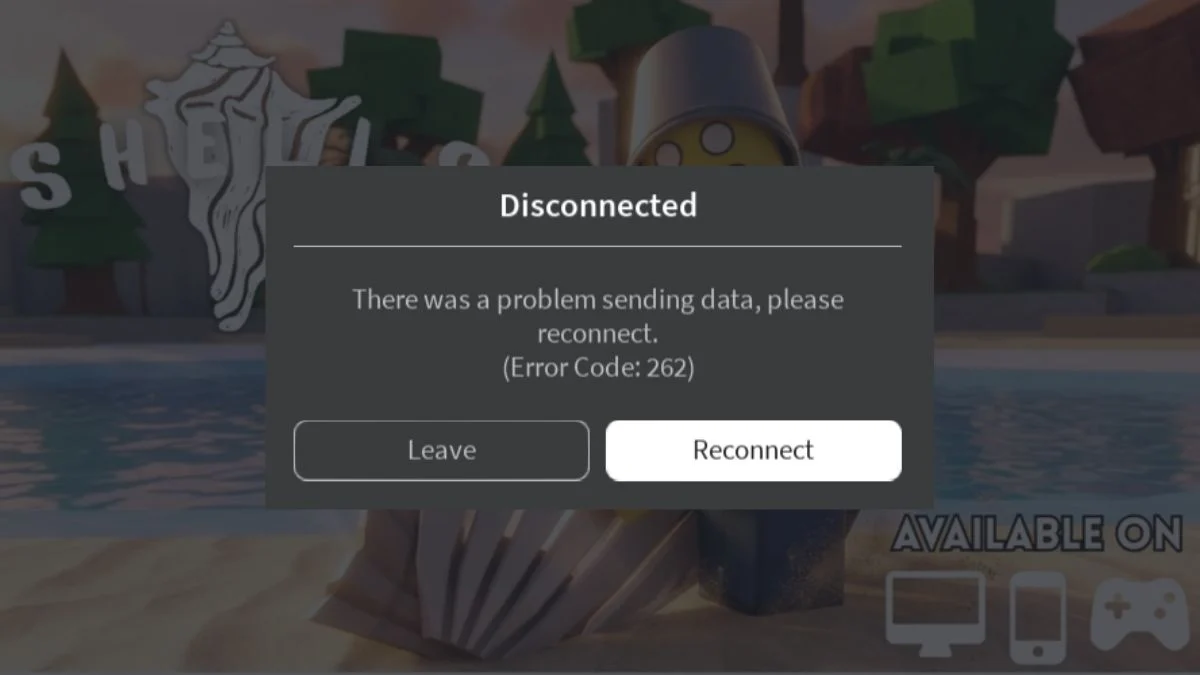
Roblox Error Code 262 is one of those frustrating mid-game interruptions that can ruin an otherwise perfect session. If you have been hit with the message “There was a problem sending data, please reconnect (Error Code: 262)”, you are not alone. This guide walks you through exactly what triggers it and how to fix it fast.
What Is Roblox Error Code 262?
Roblox Error Code 262 means your game client lost its connection to the Roblox server. The full error message reads: “There was a problem sending data, please reconnect (Error Code: 262)”. It can appear on any game, at any time, and affects players on both PC and mobile.
What Causes Roblox Error Code 262?
Understanding the cause helps you pick the right fix. There are three main culprits:
| Cause | Description |
| Server Issues | Roblox servers experiencing downtime or heavy traffic |
| Network Problems | Unstable, slow, or switching Wi-Fi connections |
| Outdated Roblox Client | Client failing to update properly or running a desynced version |
| Client-Side Issues | Corrupted Roblox app files or outdated drivers |
An outdated or desynced Roblox client is one of the most commonly reported triggers on the Roblox Developer Forum. Many players receive an update prompt when the error appears, and simply accepting that update resolves the issue immediately. Real players have confirmed all causes. On the Roblox Developer Forum, one user reported the error appearing every time they tried joining any game, and a simple reinstall of the Roblox Player resolved it completely. Another community member found that switching networks was the key fix.

Is Roblox Currently Down?
Before troubleshooting your own setup, it is always worth checking whether Roblox itself is the problem. You can check the live server status at https://status.roblox.com/. As of May 2026, all Roblox systems are operational. There was a minor incident on 6 May 2026, however it has since been fully resolved. If servers are down when you check, the only fix is to wait for Roblox to restore them.
How to Fix Roblox Error Code 262: Step-by-Step Solutions
Work through these fixes from easiest to most involved:
Fix 1: Check Roblox Server Status
Before changing anything on your end, confirm whether Roblox itself is the problem.
- Visit https://status.roblox.com/ to check for active incidents
- Follow @Roblox on Twitter/X for real-time outage updates
- Check community forums to see if other players report the same issue
- If servers are down, the only option is to wait it out
Fix 2: Restart Roblox and Your Device
This is the simplest step and should always be your first move before anything else.
- Close Roblox completely, not just minimise it
- Restart your PC or mobile device fully
- Relaunch Roblox and attempt to join a game again
Fix 3: Force a Roblox Update
An outdated Roblox client is one of the top triggers for Error Code 262. If Roblox prompts you to update when the error appears, accept it immediately.
- Close Roblox entirely
- Visit the official Roblox website and download the latest installer
- Run the installer to force an update over your existing installation
- Alternatively, if you use the Microsoft Store version, open the Store, go to Library, and check for pending updates
- Relaunch Roblox after updating
Fix 4: Log Out and Back Into Your Roblox Account
A simple account session reset can clear connection issues tied to your login state.
- Open Roblox and go to Settings
- Scroll down and select Log Out
- Close the app completely, then reopen it
- Log back in and try joining a game

Fix 5: Try a Different Roblox Version
If one version of Roblox is causing the error, switching to another often bypasses the issue entirely.
- If you use the Roblox Player, try launching via your web browser instead
- If you use the browser version, try the Microsoft Store app or the standalone Roblox Player
- This helps identify whether the issue is tied to a specific client version
Fix 6: Disable Your VPN
A VPN can interfere with Roblox’s ability to connect to its servers and is a commonly overlooked trigger for Error Code 262.
- Turn off any active VPN on your device before launching Roblox
- If you use a VPN extension in your browser, disable it there as well
- Relaunch Roblox and check whether the error returns
Fix 7: Restart Your Router
A simple router restart clears temporary network hiccups that cause disconnections.
- Turn off your router and wait at least two minutes
- Unplug the power cable completely
- Plug it back in and power it on
- Wait for a full connection before relaunching Roblox
Fix 8: Switch to a Wired Connection
Wi-Fi instability is one of the most common triggers for Error Code 262. Switching to Ethernet often resolves it instantly.
- Plug an Ethernet cable directly from your router into your PC
- Disable Wi-Fi on your device so it does not interfere
- Relaunch Roblox and check if the error returns
Fix 9: Clear Roblox Cache
Corrupted cache files can break the connection between the Roblox client and server.
- Close Roblox completely
- Open File Explorer and navigate to: C:\Users[Your Username]\AppData\Local\Roblox
- Select all files inside the cache folder and delete them
- Relaunch Roblox
If you play via a web browser, also clear your browser cache through your browser’s settings before relaunching.
Fix 10: Disable Antivirus or Third-Party Extensions Temporarily
Some antivirus programs and browser extensions can block Roblox’s data connection and trigger Error Code 262.
- Temporarily disable your antivirus and try launching Roblox
- If you use browser extensions or third-party Roblox mods, disable them as well
- If the error disappears, add Roblox as an exception in your antivirus settings rather than leaving it disabled permanently
Fix 11: Run Roblox as Administrator
Running Roblox with administrator permissions can resolve connection and permission-related errors, particularly on Windows PCs.
- Right-click the Roblox shortcut or executable
- Select Run as Administrator
- If that helps, you can set it permanently by right-clicking, going to Properties, then the Compatibility tab, and ticking Run this program as an administrator
- You can also try disabling fullscreen optimisations in the same Compatibility tab
Fix 12: Update Your Network Drivers
Outdated network drivers can cause unstable connections that trigger Error Code 262.
- Right-click the Start button and open Device Manager
- Expand the Network Adapters section
- Right-click your adapter and select Update Driver
- Follow the on-screen prompts, then restart your PC
Fix 13: Adjust Your DNS Settings
Switching to a faster, more reliable DNS can improve your connection stability with Roblox servers.
- Right-click the network icon in the taskbar and open Network and Internet Settings
- Go to Change Adapter Options
- Right-click your active connection and select Properties
- Select Internet Protocol Version 4 (TCP/IPv4) and click Properties
- Choose Use the following DNS server addresses and enter:
- Preferred: 8.8.8.8
- Alternate: 8.8.4.4
- Click OK, then restart your device
Fix 14: Check Firewall Settings
Your firewall might be blocking Roblox from communicating with its servers.
- Open Control Panel and go to System and Security
- Select Windows Defender Firewall
- Click Allow an app or feature through Windows Defender Firewall
- Find Roblox in the list and make sure it is allowed on both private and public networks
- Restart Roblox
Fix 15: Reinstall Roblox
If none of the above fixes work, reinstalling Roblox is the most reliable solution. A user on the Roblox Developer Forum confirmed this fixed their issue when no other solution worked.
- Go to Control Panel > Programs > Uninstall a Program
- Find Roblox and uninstall it
- Navigate to AppData\Local and delete any remaining Roblox folders
- Visit the official Roblox website and download the latest installer
- Install and relaunch the game
Quick-Reference Fix Table
| Fix | Best For |
| Check Server Status | Roblox-side outages |
| Restart Roblox and Device | Quick first-step reset |
| Force Roblox Update | Outdated or desynced client |
| Log Out and Back In | Account session errors |
| Try a Different Roblox Version | Client-specific bugs |
| Disable VPN | VPN-related connection blocks |
| Restart Router | Temporary network drops |
| Switch to Ethernet | Unstable Wi-Fi |
| Clear Cache | Corrupted local or browser files |
| Disable Antivirus or Extensions | Third-party interference |
| Run as Administrator | Permission or compatibility errors |
| Update Network Drivers | Outdated adapter software |
| Adjust DNS | Slow server response |
| Check Firewall | Blocked Roblox connections |
| Reinstall Roblox | Persistent or unknown client errors |

Fixing Error Code 262 on Mobile
If you play Roblox on a phone or tablet, the steps are slightly different:
- Restart your device to clear temporary errors
- Check your Wi-Fi or mobile data connection
- Log out and back into your Roblox account
- Update the Roblox app via the App Store or Google Play
- Disable any VPN running on your device
- Uninstall and reinstall the app if the error keeps returning
How to Prevent Roblox Error Code 262
Once you have fixed the issue, a few habits will help you avoid it returning:
- Keep your Roblox app and network drivers updated at all times
- Use a wired connection whenever possible for serious gaming sessions
- Avoid switching between Wi-Fi networks mid-game
- Disable VPNs before launching Roblox
- Regularly clear your Roblox cache to prevent file corruption
- Always check https://status.roblox.com/ before troubleshooting your own setup


Leave a Reply