

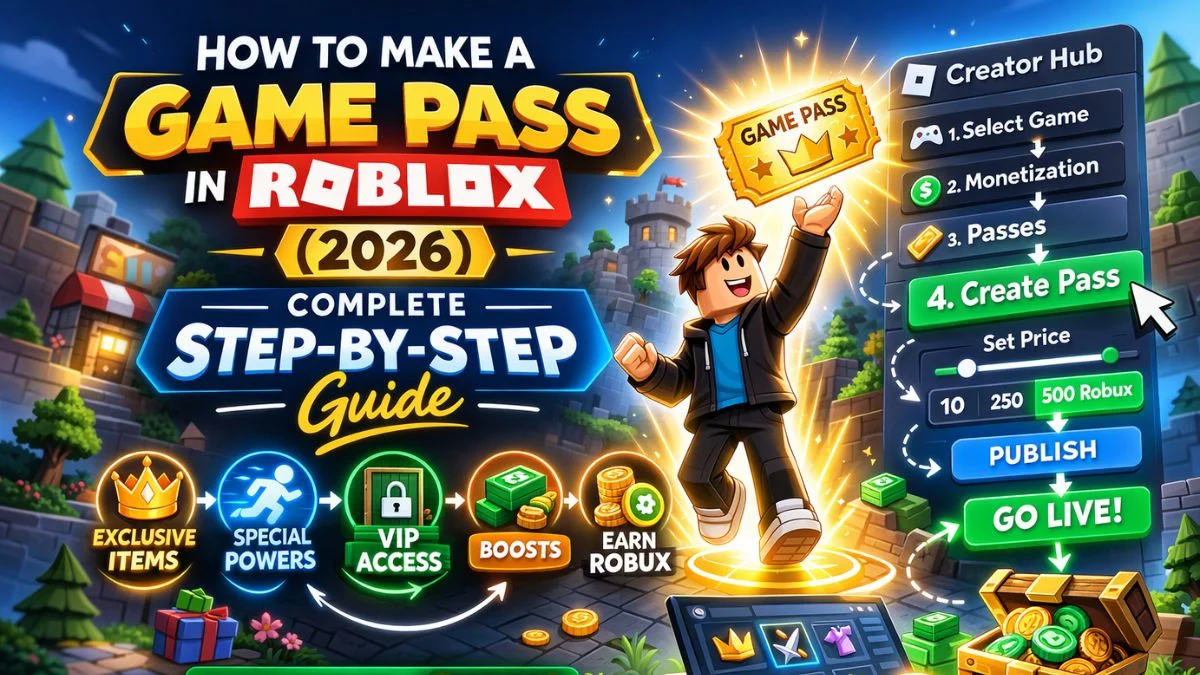
If you are building an experience on Roblox and want to start earning Robux from your players, creating a Game Pass is one of the most straightforward ways to do it. A Roblox Game Pass lets you charge players a one-time Robux fee in exchange for a permanent in-game privilege, whether that is access to a restricted area, a special power-up, or an exclusive in-experience avatar item. This guide covers everything you need to know about creating, selling, and managing a Game Pass in 2026, using the official Roblox Creator Hub documentation.
What Is a Roblox Game Pass?
A Roblox Game Pass is a one-time purchase that players make to unlock a specific benefit inside your experience. Once a player buys a Game Pass, they own it permanently and receive the associated privilege every time they join your experience.
Game Passes are different from Developer Products. Developer Products are designed for items that players might buy multiple times, such as in-experience currency, potions, or temporary power-ups. If the benefit you want to offer is permanent and bought just once, a Game Pass is the right choice.

What You Need Before Creating a Game Pass
Before you can create a Game Pass on Roblox, your experience needs to be published and accessible on the platform. If your experience is still unpublished, you will need to publish it first through Roblox Studio before the Game Pass option becomes available in the Creator Hub.
How to Create a Roblox Game Pass: Step by Step
Here is the full process for creating a Game Pass through the Roblox Creator Hub:
- Go to the Creator Hub and navigate to Creations.
- Select the experience you want to add the Game Pass to.
- Go to Monetization and then select Passes.
- Click Create a Pass.
- Upload an image to use as your Pass icon. The image must meet the following requirements:
- Maximum size: 512×512 pixels
- Format: .jpg, .png, or .bmp
- Important details should not fall outside the circular boundary of the icon, as the image displays in a circular crop
- Enter a name and a description for the Pass.
- Click Create Pass.
Your Game Pass is now created. However, it is not on sale yet. You will need to follow additional steps to make it available for purchase.
How to Get Your Game Pass ID
You need the Pass ID if you plan to use scripting to sell or assign the pass inside your experience. Here is how to find it:
- Go to Monetization and select Passes.
- Hover over your Pass thumbnail.
- Click the three-dot menu (⋯).
- Select Copy Asset ID from the context menu.
Keep this ID handy because you will need it in your scripts.
How to Sell a Roblox Game Pass
You have two options for selling a Game Pass: inside your experience or outside it on the experience details page.

Selling Inside Your Experience
To sell a Pass directly within your experience, you use Roblox’s MarketplaceService in your scripts. The three key functions you need are:
GetProductInfo() retrieves details about the Pass such as its name and price, so you can display it in your in-experience shop.
PromptGamePassPurchase() triggers the purchase prompt for a player. You can call this when a player presses a button or interacts with an NPC vendor, for example. Before prompting, the script checks whether the player already owns the Pass using UserOwnsGamePassAsync().
PromptGamePassPurchaseFinished handles the event after a purchase completes. You place this script in ServerScriptService so the server manages the player’s privileges securely.

Selling Outside Your Experience
To make your Pass available for purchase on the experience details page in the Store tab, follow these steps:
- Go to Monetization and select Passes.
- Hover over the Pass and click the ⋯ menu.
- Select Sales.
- Enable the Item for Sale toggle.
- Enter the price in the Price in Robux field. The minimum price is 1 Robux and the maximum is 1 billion Robux.
- Click Save Changes.
The Pass will then appear in the Store tab of your experience’s details page where players can discover and buy it.
How to Assign Game Pass Privileges to Players
Creating and selling a Pass does not automatically grant players the associated benefits. You need to script this yourself. The recommended approach is to use the PlayerAdded event, which fires each time a player joins your experience. Inside that event, the script checks whether the joining player already owns the Pass using UserOwnsGamePassAsync(), and if they do, it assigns them the relevant ability or bonus.
Place this script inside ServerScriptService so that the server handles privilege assignment rather than the client.
How to Promote a Game Pass on Roblox
Roblox gives creators the option to promote their Passes for free on the Buy Robux page. When you opt in to this, players who purchase a Robux package may receive your Pass at no additional cost, which encourages them to join your experience and discover your content.
To promote a Pass, follow these steps:
- Go to Monetization and select Passes.
- Select the Pass you want to promote.
- Select Promotions.
- Enable Include this item in the bonus pool.
- Click Save Changes.
Your promoted Pass must meet the following requirements:
- It can be on-sale or off-sale. If it is on-sale, the Robux value must be more than 49 Robux and less than 801 Robux.
- It must include a thumbnail image.
- It cannot grant paid random items.
- It must comply with Roblox’s Community Standards.
There is no limit to how many Passes you can promote at once.
How to Personalise Your In-Experience Store with Pass Recommendations
Roblox provides product intelligence APIs that let you tailor which Passes appear to each player based on their play history and preferences. Two key APIs support this:
RankProductsAsync() takes a list of Pass IDs and returns them in a personalised order for the current user. Because this API has a strict rate limit, Roblox recommends loading recommendations once at game join rather than calling it repeatedly during a session.
RecommendTopProductsAsync() returns up to 50 items a specific user is most likely to engage with and purchase, making it ideal for a “Top Picks” section in your store. This API requires at least one purchase within the past 28 days to generate results. It also filters out any Passes the player already owns, so recommendations always show relevant new items.
Both APIs work best when wrapped in a task.spawn call so that slow responses do not freeze the game or the UI while the data loads.

Important Technical Notes for Developers
If you are scripting your Game Pass logic, these details are worth knowing before you go live.
Use GetProductInfo() with pcall for error handling. When retrieving Pass information via GetProductInfo(), always wrap the call in a pcall so that network errors or invalid IDs do not crash your script. The call uses an async pattern internally, so handling failures gracefully keeps your experience stable for players.
GamePassService is legacy and deprecated. Older Roblox tutorials may reference GamePassService for checking Pass ownership. That service is deprecated, so you should use MarketplaceService:UserOwnsGamePassAsync() instead for all current development.
UserOwnsGamePassAsync() uses a cache. This function does not make a live server request every time it is called. It reads from a cached value, which means that if a player purchases your Pass from outside your experience, the game may take a few minutes to reflect the updated ownership status. This is expected behaviour and does not indicate a bug. The cache updates shortly after the external purchase completes.
Sales data is available as a CSV download. Roblox does not store user-specific purchase history for passes by individual player. However, you can download aggregate sales data as a CSV file from the Creator Hub for custom analysis. If you need to track which specific players have purchased a Pass, you are responsible for storing that data yourself using Roblox’s data store system within your experience.
How to Track Pass Performance with Analytics
Once your Game Pass is live, you can monitor its performance directly in the Creator Hub. Pass analytics give you the following tools:
- View your top-performing Passes over a selected time period.
- Display up to eight top-selling items on a time-series graph to track overall sales and revenue.
- Sort your full Pass catalogue by sales volume and net revenue.
- See how many Passes players acquired through the Buy Robux promotion.
- Track how many players joined your experience after receiving a promoted Pass.
To access analytics, go to Creations, select your experience, go to Monetization and then Passes, and click the Analytics tab.

Key Facts at a Glance
- Minimum Pass Price: 1 Robux
- Maximum Pass Price: 1 billion Robux
- Promoted Pass Price Range: More than 49 Robux, less than 801 Robux
- Icon Requirements: 512×512 pixels max, .jpg / .png / .bmp, circular crop applies
- Script Location: Privilege assignment and purchase handling go in ServerScriptService
- Prerequisite: Experience must be published before a Pass can be created
Official Resources
You can find the complete official documentation for Roblox Game Passes, including full API references and scripting examples, at the following links:
- Passes Documentation: https://create.roblox.com/docs/production/monetization/passes
- Creator Hub Dashboard: https://create.roblox.com/dashboard/creations
Both pages are kept up to date by Roblox and are the best reference points if any details change after this guide is published.
Creating a Roblox Game Pass is one of the most direct paths to monetising your experience on the platform. With over 144 million daily active users across 180+ countries, there is a large and active audience ready to discover and support the experiences you build.


Leave a Reply