

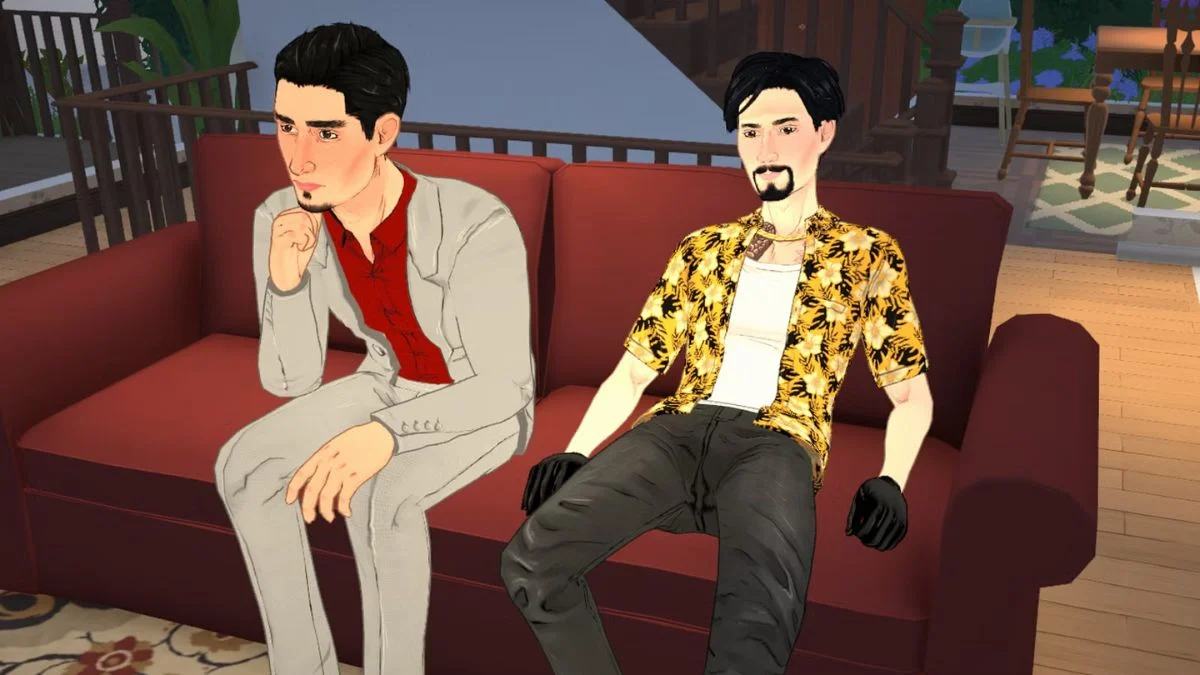
Paralives launched on Steam Early Access on May 25, 2026, and getting comfortable with how your Parafolks move around is one of the first things you need to nail. Whether you are navigating the town, sending your Para somewhere specific, or managing the camera to keep up with the action, here is a complete breakdown of everything confirmed about movement in Paralives.
How to Move Your Camera in Paralives
Before your Parafolks go anywhere, you need to know how to move the camera around the world. Paralives gives you several options depending on your setup.

Moving the Camera
You can move the camera using either the WASD keys or the arrow keys on your keyboard. Both work the same way, so use whichever feels more natural to you. If you prefer not to use keyboard controls at all, you can also turn on cursor edge scrolling in the settings menu, which moves the camera automatically when you push your mouse toward the edge of the screen.
Rotating the Camera
To rotate your view, hold down the right mouse button and move your mouse in the direction you want to rotate. If you are playing on a MacBook or a laptop that does not support right-click-and-drag comfortably, you can use the Q and E keys instead. Q rotates the camera left and E rotates it right.
Zooming In and Out
You can zoom using the scroll wheel on your mouse. If you are on a laptop, normal trackpad zoom controls work here as well.
How to Move Your Parafolk to a Location
Getting your Para from one place to another is straightforward. To move a Parafolk, click on any floor or ground tile and select the Go Here option from the interaction menu that appears. Your Para will then walk to that location.
This works both inside your home lot and out in the wider town of Melino, so you can direct your Para to any reachable area with a simple click.
How to Fix a Stuck Parafolk
Getting a Para stuck is something players have already run into during the early days of Early Access. If your Para becomes stuck and cannot move, here is what to do:
- Pause the game and look for the Unstuck option when you click on your Para. This is the quickest fix available in the current build.
- If you accidentally switch control to an NPC while trying to solve a stuck situation, you can zoom out to the town map by pressing M and then click on a household to find the Switch to This Household option.
- However, keep in mind that the map only shows Parafolks who actually live in a household. If your Para does not yet have a home assigned, they will not appear in that menu.
- In that situation, you can use the console command “addselectedcharacterstohousehold” to bring them back under your control. This is a workaround confirmed by players in the community during Early Access.

How to Switch Between Parafolks and Households
Moving between characters is a core part of managing your save in Paralives. Here is how it works:
- Zoom out to the town map view to see all households in Melino. The town view has a slightly hazy filter and icons above each lot to indicate what type of lot it is.
- Click on any household you are not currently playing and select the option to swap to that household. A short loading screen will appear while the switch happens.
- Once you are controlling a different household, you can navigate their lot and direct their Parafolks independently.
It is worth noting that you can only see Parafolks who live in a registered household through the map view. Paras who have not yet moved into a lot will not appear there, which is why the Unstuck command and console workaround are useful to know early on.
Selecting and Moving Multiple Parafolks at Once
Paralives lets you move and direct a group of Parafolks together, which is especially useful for household activities and relationship-building.
To select multiple Parafolks at once, click and drag across the area where your characters are standing. Any Parafolk who falls within the blue selection area will join the group. You can then move the entire group together or direct them toward shared activities.
This group mechanic also ties into the Together Bar, which fills up gradually as Parafolks spend time with each other. Once the bar fills, you can choose a Together Card to influence the flow of conversation and affect the group’s mood. Different Parafolks will react differently to the same card, which adds personality to group interactions.
Enabling Para Paths
If you want to keep track of exactly where your Parafolks are heading at any given moment, you can turn on Para Paths in the gameplay settings. This feature makes the intended route of each household Para visible on screen, so you always know where they are going without having to follow them manually.
Camera and Control Customisation
If the default controls do not suit your playstyle, Paralives lets you adjust almost everything in the settings menu.
Key Bindings
You can change any control in the Key Bindings menu under settings. To reassign a control, simply click on the action you want to change and press the new key you want to assign to it.
Cursor Edge Scrolling
As mentioned above, this option sits in the general settings menu and is a good alternative for players who prefer mouse-driven camera movement over keyboard controls.
Accessibility Options
Paralives also includes a range of accessibility settings, including six colour blindness filters that you can preview and apply before or during gameplay. These filters are currently labelled 1 through 6 and show you what each one looks like once you click on it. There are also some additional visual filter options available for players who want a different aesthetic experience while playing.

Where to Buy Paralives
You can purchase Paralives exclusively via Steam at store.steampowered.com/app/1118520/Paralives. The game is currently in Early Access, which means movement controls, camera systems, and character interaction features will continue to expand and improve based on player feedback. You can also report any bugs or issues directly to the developers at paralives.com/gamefeedback.


Leave a Reply