

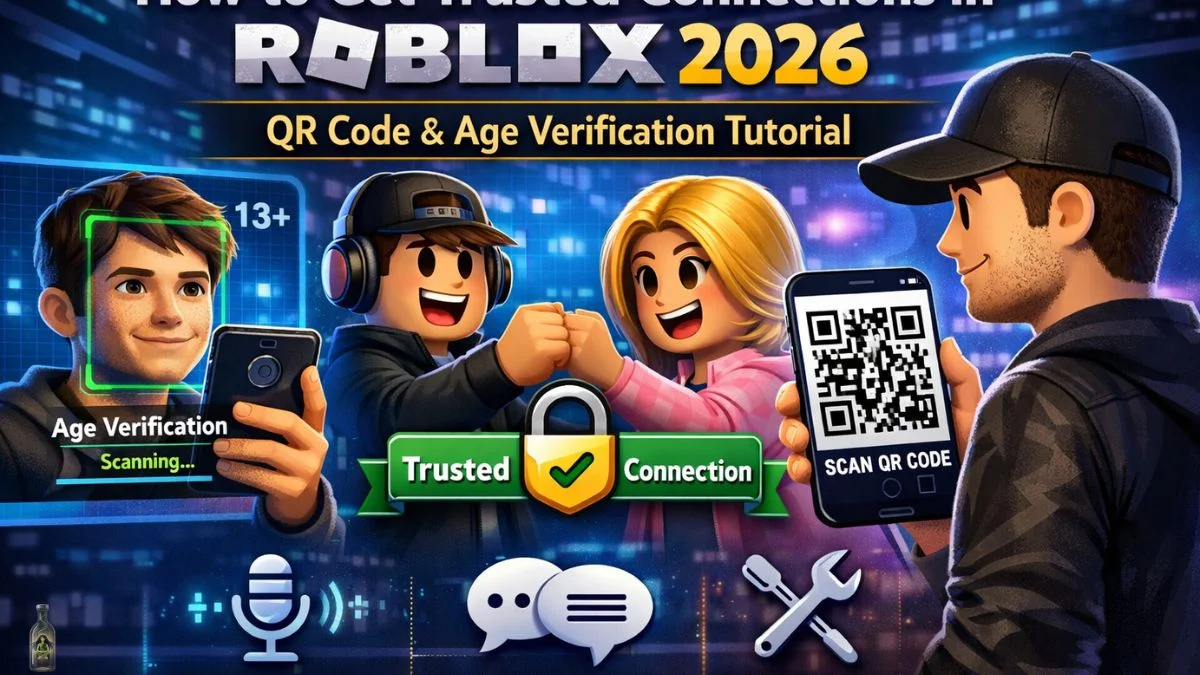
⚠️ Safety First: Trusted Connections should only be used with people you genuinely know in real life. Never add strangers, and always protect your personal information while gaming online. This feature involves facial scanning for age verification, so make sure you understand what you’re sharing before proceeding.
Looking to unlock Party Voice and chat without filters in Roblox? Here’s the thing – you’ll need Trusted Connections first. This feature lets verified players aged 13+ communicate more freely with friends they actually know, making your gaming sessions way more natural and fun.
Before diving in, there’s one crucial step: age estimation through facial scanning. Roblox partners with Persona to capture a selfie-style video that verifies you’re 13 or older. Without completing this verification, the Trusted Connection options won’t even appear in your settings. Think of it as your entry ticket to enhanced social features.
Roblox Trusted Connections: Age Requirements
Here’s where things get interesting. Roblox splits users into two groups, and each has different rules:
Ages 13-17 (Teen Players):
- Must pass facial age estimation or verify with government ID
- Can add other verified teens through multiple methods
- Need real-life connection proof (QR code or contacts) when adding adults 18+
- Get expressive chat features exclusively with Trusted Connections
Ages 18+ (Adult Players):
- Automatically unlock expressive chat when messaging other verified adults
- Must use Contact Importer or live QR scanning to add teens (13-17)
- Don’t need Trusted Connection status for adult-to-adult enhanced chat

Three Easy Ways to Add Trusted Connections in Roblox

Method 1: Contact Importer (Mobile Only)
Perfect for quickly adding friends from your phone:
- Head to your Home screen
- Tap the Connect “+” icon
- Select “Contacts”
- Choose friends from your contact list or accept incoming requests
Pro tip: This method works brilliantly when adding school friends or gaming buddies whose numbers you already have. It ensures you’re connecting with real-life acquaintances.
Method 2: Live QR Code Scanning
This is hands-down the coolest method because it requires face-to-face interaction:
Finding Your QR Code:
- Navigate to Home in the mobile or desktop app
- Click the Connect (“+”) icon
- Tap “My QR”
Scanning Process:
- Use your device’s camera
- Alternatively, hit the camera scanner icon (top right of My QR page)
- Scan your friend’s code in real-time
Important: Screenshots won’t work! The code must be scanned live. This security measure prevents random players from adding you. If you’re already regular Connections, scanning live will prompt an upgrade to Trusted Connection status.

Method 3: Mutual Opt-In Through Profile Menu
Great for upgrading existing Connections:
- Visit your Connection’s Roblox profile
- Tap the three-dot menu
- Choose “Add Trusted Connection”
- Wait for them to accept via notifications
Once they accept, boom – you’re officially Trusted Connections!
What You Unlock with Roblox Trusted Connections
Once you’ve added Trusted Connections, here’s what changes:
Party Voice: Real-time voice chat while gaming together makes coordination seamless during intense matches.
Chat Without Filters: Messages flow naturally without automatic blocking, though non-Roblox URLs and harmful content remain restricted. No more censored words interrupting your conversations!
Team Create in Studio: Perfect for creators wanting to collaborate live on building experiences.
Safety Note: Even in chat without filters, Roblox Community Standards absolutely still apply. All conversations remain monitored for critical safety concerns like grooming and exploitation.
Parent’s Guide to Roblox Trusted Connections Safety
Parents, you’ve got powerful tools to keep tabs on your teen’s Roblox activity:
Account Linking: Connect your account to your teen’s profile for behind-the-scenes access to their Roblox life.
What Parents Can Monitor:
- View both regular Connections and Trusted Connections (with permission)
- Track daily screen time
- Receive alerts for Robux spending
- Get notifications for large transactions
Dashboard Access: Simply link accounts through parental controls to access a comprehensive dashboard showing your child’s gaming activity.
Active Monitoring: Despite unfiltered chat being available, Roblox still monitors all conversations for what they call “critical harm” – including grooming, exploitation, and truly dangerous content. This monitoring happens even in private 1v1 chats between Trusted Connections.

Managing Your Roblox Trusted Connections List
Changed your mind about someone? No worries – you’ve got complete control:
- Downgrade: Tap “Remove Trusted Connection” to revert them to regular Connection
- Full Removal: Select “Remove Connection” to delete them entirely
- Report Function: Standard reporting tools remain available for any violations
Common Roblox Trusted Connections Issues
Can’t See the Option?
- Complete facial age estimation first
- Ensure you’re both age-verified (13+)
- Some Connections may be ineligible for profile menu method
Under 13? The Trusted Connections feature is not available for younger players.
Not Age-Checked? Users get added as regular Connections until completing age verification through facial scanning or ID upload.
Frequently Asked Questions
According to Roblox, it doesn’t receive or store the raw selfie-style video or any biometric data. Their partner Persona handles age estimation, then deletes the information.
Nope, QR codes must be scanned live. Screenshots only create regular Connections, not Trusted ones – this prevents random players from adding you.
They’ll see your username, membership length, and age group – nothing beyond that unless you choose to share it in conversations.
Yes, but only through Contact Importer or live QR code scanning. This ensures teens are only adding adults they actually know in real life.


Leave a Reply