

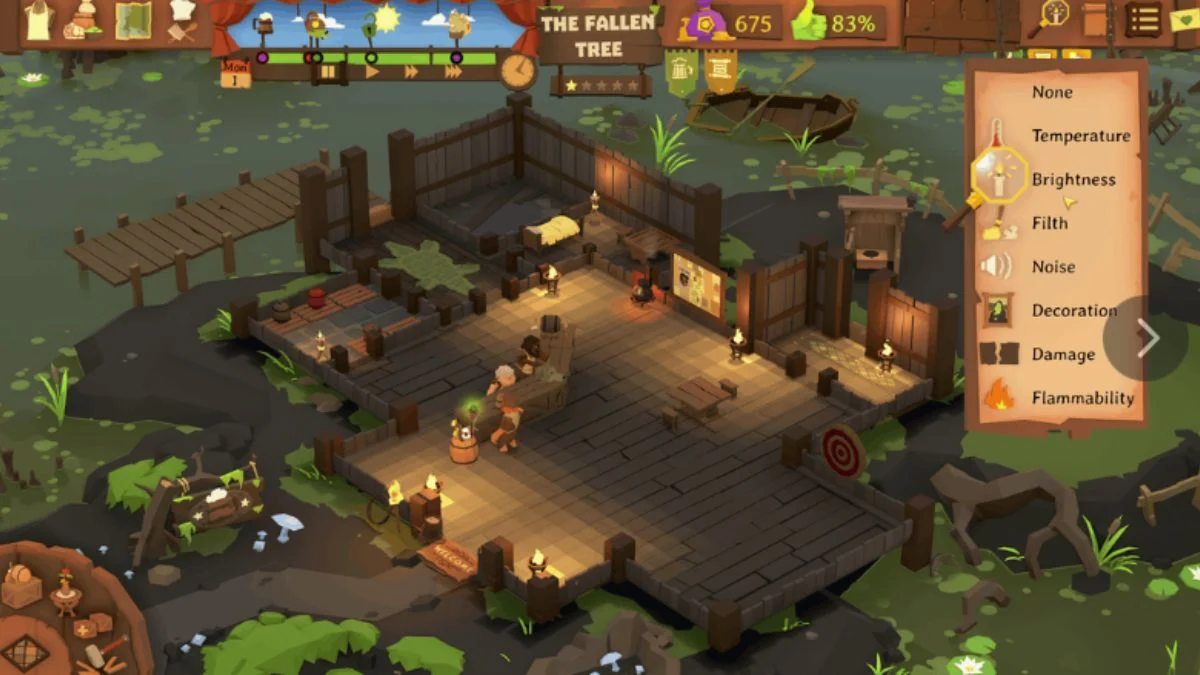
Every good tavern tale deserves a fresh beginning. Whether you’re a perfectionist innkeeper looking to apply your hard-earned experience to a pristine tavern or a curious player eager to relive the joy of your first few guests, knowing how to reset your progress in Tavern Keeper can be invaluable.
Although Tavern Keeper currently doesn’t include an in-game “Reset Progress” option, there’s still a reliable, if somewhat manual method to begin again from scratch. This guide walks you through the safest and most effective way to reset your game completely, from disabling cloud saves to clearing your local data.
Why Resetting Might Be Worth It?
The charm of Tavern Keeper lies in experimentation—balancing staff schedules, perfecting décor, and discovering the best menu for your guests. However, as you learn the ropes, mistakes or inefficiencies can pile up. Resetting offers a clean slate to reapply your knowledge and refine your strategies, making your new tavern run smoother than ever.
For some players, a reset is also about rekindling the game’s magic—returning to that first flicker of excitement when the Riverbottom Tavern opened its doors.

Step-by-Step: How to Reset Progress in Tavern Keeper
Since the game doesn’t provide an internal “New Game” option yet, the process involves removing all your existing save files, local and in the cloud, and restarting with a new profile.
Step 1: Disable Steam Cloud Save Sync
Before you remove any files, ensure that Steam doesn’t automatically restore your progress from its cloud storage.
- Open your Steam Library.
- Locate Tavern Keeper in your games list.
- Right-click the title and select Properties.
- Under the General tab, uncheck Keep games saves in the Steam Cloud for Tavern Keeper.
Disabling this prevents Steam from re-downloading old save data once you’ve cleared local files.
Step 2: Delete Local Save Files
Now, it’s time to remove the files stored on your device that record your campaign progress.
- In the same Properties window, click on Local Files.
- Select Browse Local Files to open the game’s installation folder.
If your saves aren’t visible there, navigate manually to this directory:
C:\Users\[Your Windows Name]\AppData\LocalLow\Greenheart Games\Tavern Keeper\main\profiles
- Delete all the contents of the profiles folder.
Step 3: Relaunch the Game
Once you’ve deleted your local and cloud saves:
- Restart Tavern Keeper from Steam.
- The game will generate a completely new save file.
- You’ll begin fresh with The New Owner! challenge in Riverbottom, just as you did on your very first playthrough.
Important Notes and Risks
While deleting save data is an effective workaround, proceed with care. Developers have noted that these local folders weren’t designed for manual modification. Though unlikely, tampering could cause minor glitches or data inconsistencies. If anything goes awry, reinstalling the game should fix the issue.
To stay safe, consider backing up your profile folder before deletion. This way, you can restore your progress if you ever change your mind.
More Trending Guides:


Leave a Reply