

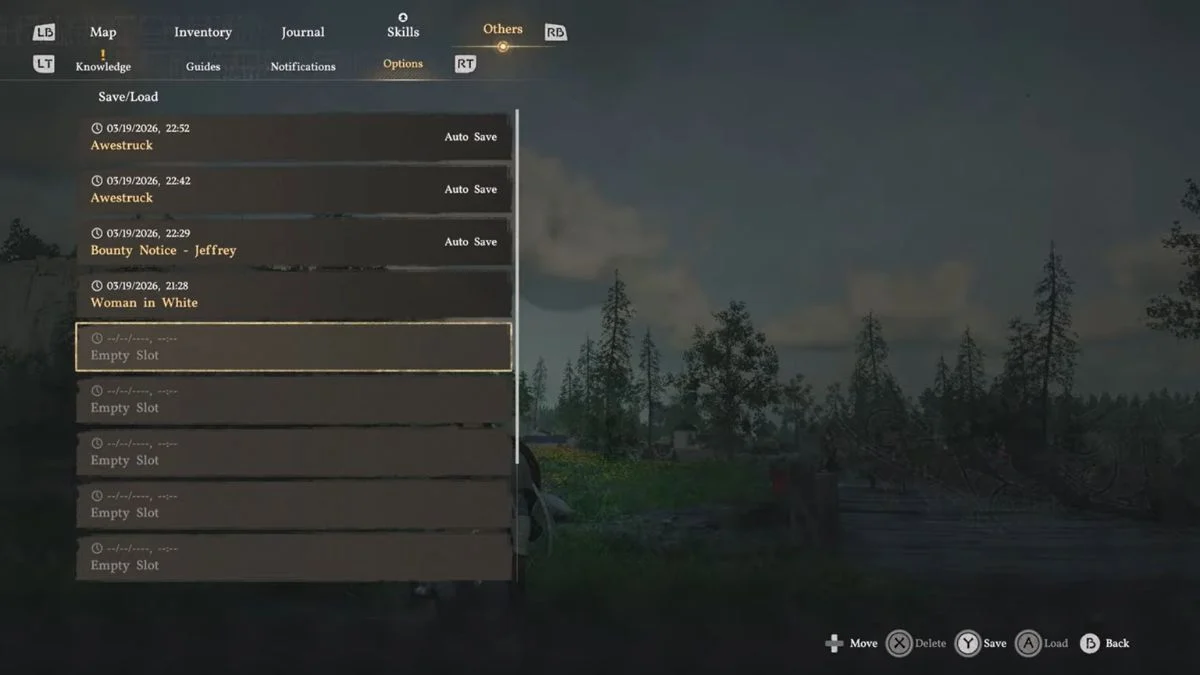
Crimson Desert is already well known for not explaining its systems clearly, and saving is no exception. Many players jump in and spend hours progressing before realising they have no idea how or when the game saved their progress. The good news is that saving in Crimson Desert is straightforward once you know where to look, and there are multiple ways to do it depending on your platform and preference.
How Saving Works in Crimson Desert
Crimson Desert offers two saving methods: an automatic autosave system and a manual save option. Both are available across all platforms.
There is no permadeath, ironman mode, or restricted saving system in Crimson Desert. You have full control over both manual and automatic saves throughout your entire playthrough.

Autosave
Crimson Desert autosaves automatically whenever you complete an important action. This includes:
- Talking to an important NPC
- Solving a puzzle
- Picking up an important item
- Completing quests or reaching key story moments
For most players, the autosave system handles the majority of cases reliably and frequently. However, if you want more control over exactly where your progress is stored, the manual save option gives you that flexibility.
In the Save/Load menu, autosaves appear labeled as “Auto Save” and are kept completely separate from manual saves. Autosaves do not overwrite manual saves unless you explicitly select the same slot yourself.
How to Manually Save in Crimson Desert
Unlike most RPGs where the Save option sits directly in the main menu, Crimson Desert buries it a few layers deeper. Here is the exact sequence to reach it:
- Press Start to open the main menu.
- Navigate to the “Others” tab using RB on Xbox or R1 on PS5.
- Inside the Others tab, press RT on Xbox or R2 on PS5 to navigate all the way to the “Options” tab at the end.
- In the Options menu, select “Save/Load Game”.
- Choose a save slot and save your game as normal.
Manual saves are available at any time outside of restricted moments such as mid-cutscene, active loading screens, or certain boss fight sequences. The game supports multiple save slots, giving you plenty of room to keep backups at key points across your playthrough.

Save Controls at a Glance

| Step | Xbox | PS5 | Result |
| Open menu | Start | Start | Opens main menu |
| Navigate to Others tab | RB | R1 | Opens Others section |
| Navigate to Options tab | RT | R2 | Opens Options menu |
| Select Save/Load Game | A | Cross | Opens save slot selection |
How to Find the Save File Location on PC
If you are playing Crimson Desert on PC, you can access your save files directly and create manual backups whenever you want. The AppData folder is hidden by default, so you may need to enable hidden folders in Windows Explorer before navigating there.
The default save file path is:
C:\Users\YourUsername\AppData\Local\PearlAbyss\CD\save
However, some installations use a slightly different path:
C:\Users\YourUsername\AppData\Local\PearlAbyss\CrimsonDesert\SaveGames
The fastest way to locate it is to press Win + R, type %localappdata% into the Run box, and press Enter. Then search for the PearlAbyss folder. Inside it you will find the save directory for your installation.
Once you navigate to the correct folder, you will find two subfolders. The numbered folder contains all the save files created within the game.
How to Create a Manual Backup on PC
Creating a backup is straightforward:
- Navigate to the save folder using the path above.
- Copy the save file you want to back up.
- Paste it into a separate folder in a safe location on your drive.
You can use this copied file as a restore point at any time. If you overwrite a save in-game and want to recover an earlier point, simply paste the backup file back into the original save folder.
The game also sometimes creates automatic .bak backup files in the same folder, for example as charactername.bak. If a save file becomes corrupted, you can rename the .bak file to .sav to restore your progress from that backup automatically.
Note that since Crimson Desert is a single-player exclusive experience, it is theoretically possible to use another player’s save file by placing it in this folder, though this has not been fully verified and results may vary.

Cloud Save and Cross-Platform Notes
| Platform | Save Type | Cloud Sync |
| Xbox / PC via Microsoft Store or Game Pass | Local + Cloud | Yes, via Xbox Play Anywhere (cross-progress between Xbox and PC) |
| Steam (PC) | Local only | No automatic cloud sync |
| PS5 | Local + PS Cloud | Via standard PS Plus cloud saves |
| Cross-platform (Steam to PS5 etc.) | Not supported | No cross-save between different platforms |
Quick Tips for Managing Your Saves

- Use multiple save slots to preserve progress before major quests, boss fights, or any point where you want a safety net to fall back on.
- PC players should create periodic manual backups of their save folder, particularly before exploring areas where things could go wrong quickly.
- The autosave is reliable for day-to-day play, but manual saves give you full control over exactly where you can return to if needed.
- To trigger an immediate autosave without navigating the full menu: change any minor setting such as brightness or audio volume in the Options menu, exit, then change it back. This commonly forces an autosave in practice.
- If you want to change the default save file location on PC, you can do so through Steam game properties before launching.
- Keep an eye on .bak files in your save folder as an extra layer of crash protection. If a save ever corrupts, those backup files may save your progress.


Leave a Reply