

Tomodachi Life: Living the Dream lets you build an entire island from scratch, but the Palette House creation tool works pixel by pixel, which can be intimidating if you are not artistically confident. The good news is that there are legitimate workarounds to bring your own images into the game’s creative system, and a fan-made tool that makes the whole process dramatically easier for everyone.
Important: What Nintendo Has Actually Restricted
Before diving in, it helps to understand what you are actually working around. Nintendo has confirmed that certain built-in sharing features are restricted in Tomodachi Life: Living the Dream. These restrictions are intentional and apply to all players.
| Restricted Feature | What It Means |
| Transfer to Smartphone | You cannot use the system function to send screenshots to your phone directly |
| Direct Social Media Posting | You cannot post screenshots to social media using the built-in system feature |
| Nintendo Switch App Upload | You cannot auto-upload captures to the Nintendo Switch App on Switch 2 |
Nintendo stated these restrictions were added in consideration of the game’s unique gameplay and to help keep the worlds players create fun and safe. However, you can still post screenshots and videos to social media manually, and streaming is fully permitted under Nintendo’s Game Content Guidelines.

Method 1: The Living the Grid Tool (Best for Palette House Imports)
If your goal is to recreate a real image inside Tomodachi Life: Living the Dream using the Palette House, the easiest solution is a free fan-made tool called Living the Grid, created by Reddit user ClementGzl.
What Living the Grid does:
- You upload any image to the website at living-the-grid.gozapp.dev
- The tool converts your image into pixel art that fits the Palette House grid
- It automatically translates the colours in your image to ones available inside Tomodachi Life: Living the Dream
- You can adjust the brush size to control how detailed the final result is
- The tool outputs a downloadable grid image you can follow as a reference while drawing in-game
The result is a step-by-step pixel guide that you then manually recreate inside the Palette House. It does require patience, but it means any player can bring logos, icons, characters, or artwork into the game without needing artistic skill.
You can also share your Living the Grid output as an image with other players, since it includes the full colour guide and grid layout. This effectively lets the community share custom designs outside the game, even without native online sharing.
Note: Living the Grid is a fan project and Nintendo has not officially endorsed it. Use it while it is available, as fan tools of this kind can be subject to takedown at any time.
Method 2: Transfer Screenshots to a Computer via USB Cable
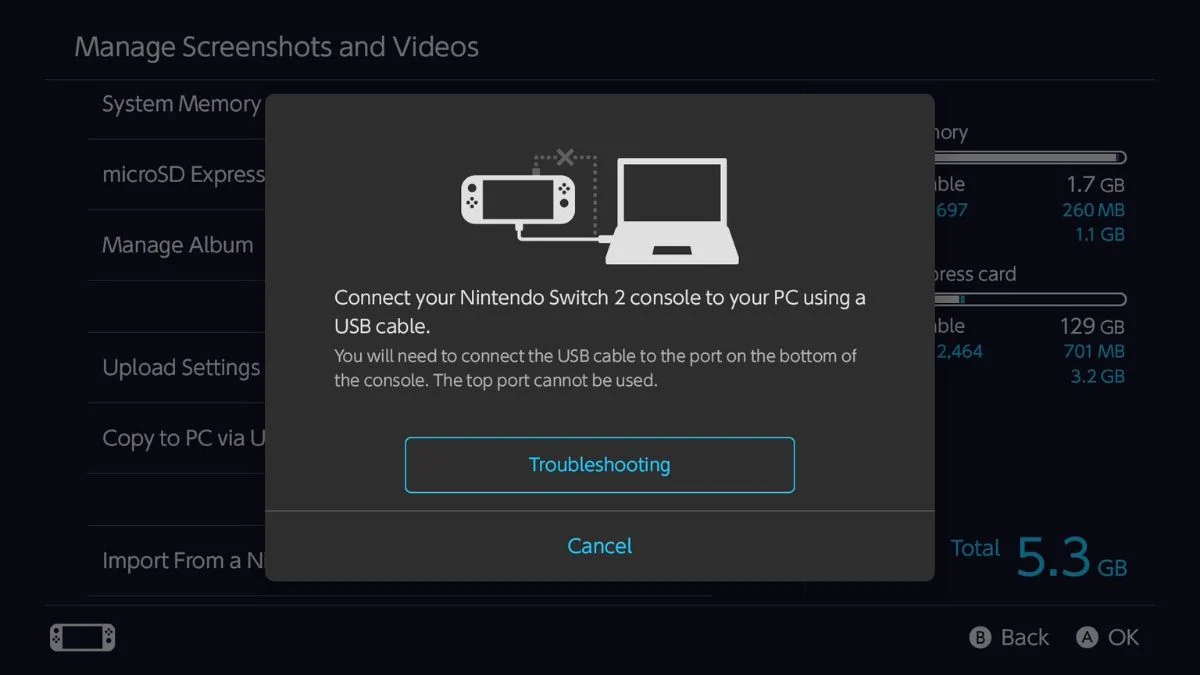
If you want to move screenshots and video clips off your Switch to share them online, you can do this using a standard USB-C cable. This is the most accessible method since most players already own one.
What cable you need:
- Modern MacBook: USB-C to USB-C cable
- Windows PC with rectangular USB port: USB-C to USB-A cable
- Mac users: You also need to download a Media Transfer Protocol (MTP) application before this method works. A list of reputable MTP apps is available on the MTP Wikipedia page
Steps to copy files via USB:
- Plug the USB-C end of the cable into the bottom port of your Nintendo Switch or Nintendo Switch 2
- Plug the other end into your computer or laptop
- Open System Settings on your Switch
- Select Data Management, scroll down, and choose Manage Screenshots and Videos
- Scroll down and select Copy to a PC over USB
- Your computer will now recognise the Switch like a USB drive
- Open the Tomodachi Life: Living the Dream folder and copy the files you want
- Paste them wherever you want to save them on your computer
- Select Disconnect on your Switch when finished
Important: Always use Copy, not Cut. The Switch does not allow you to delete files via USB connection, so cutting files will result in blank or broken transfers.

Method 3: Transfer Screenshots via microSD Card Reader
If you have a microSD card reader handy, this method works just as well and does not require any cables.
Steps to copy files via microSD card:
- Turn your Nintendo Switch or Switch 2 off completely before removing the card
- Open the kickstand on the back and pull out the microSD card
- Insert the microSD card into your SD card reader and plug the reader into your computer
- Navigate to the following folder path: Nintendo > Album > Year > Month > Date
- Copy the screenshot or video files you want and paste them to a safe location on your computer
- Eject the card reader properly before removing it to prevent data loss
Can You Still Share Screenshots and Videos Online?
Yes. Even with the restrictions in place, Nintendo confirmed that sharing content from Tomodachi Life: Living the Dream to social media and streaming gameplay are both permitted. You just need to do it manually using the USB or microSD methods above rather than through the built-in system sharing features.
When posting online, follow the platform’s own rules alongside Nintendo’s Game Content Guidelines for Online Video and Image Sharing Platforms.
Import Images in Tomodachi Life: Quick Answers
| Question | Answer |
| Can you directly transfer screenshots to your phone? | No, this feature is restricted by Nintendo |
| Can you share screenshots to social media? | Yes, but manually via USB or microSD, not through built-in features |
| What is Living the Grid? | A free fan tool that converts any image into a Palette House pixel guide |
| Where do you find Living the Grid? | living-the-grid.gozapp.dev |
| Do Mac users need extra software for the USB method? | Yes, an MTP application is required |
| Is streaming Tomodachi Life: Living the Dream allowed? | Yes, under Nintendo’s Game Content Guidelines |
| Do you need to turn the Switch off for the microSD method? | Yes, always power down completely before removing the card |

Bottom Line
Getting images into Tomodachi Life: Living the Dream takes a bit more effort than a typical Nintendo game, but the options are solid. The Living the Grid tool is your best bet for bringing real images into the Palette House creatively, while the USB and microSD methods give you a reliable way to get your screenshots off the Switch and onto your social feeds. The community around this game is already building tools to fill in the gaps Nintendo left, so keep an eye on the Tomodachi Life subreddit for new resources as they appear.


Leave a Reply