

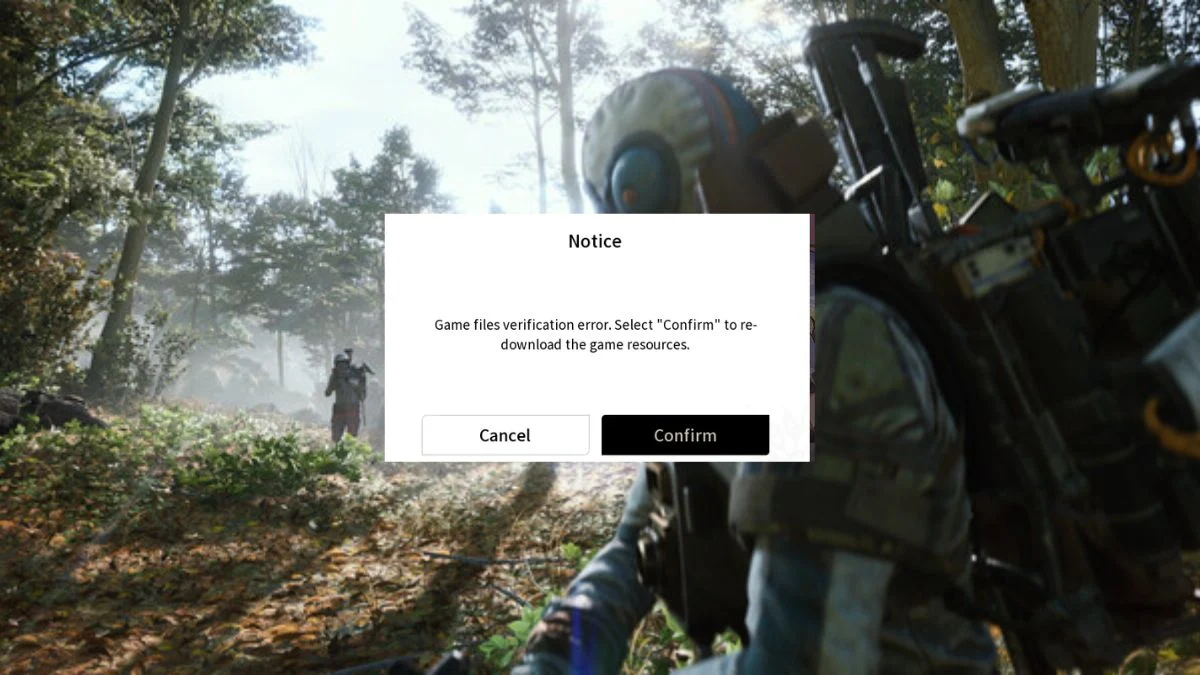
The hauntingly beautiful world of Duet Night Abyss has captivated countless players with its blend of gothic aesthetics and action RPG intensity. Yet, for many, the first hurdle appears long before combat begins — a frustrating “Download Failed” message that halts installation or in-game updates.
This issue, often accompanied by a stalled launcher or a frozen progress bar, can stem from a range of causes: unstable networks, corrupted files, or simply insufficient storage. Below, we’ll unravel why this happens and guide you through every reliable fix — step by step — so you can return to the battlefield without delay.
In This Post:
What Causes the “Download Failed” Error in Duet Night Abyss?
The Download Failed error generally points to one or more technical interruptions that prevent the game from installing or updating properly. Based on player reports and developer notes, here are the main culprits:
- Unstable or Slow Network Connection – The game’s launcher relies on a consistent network to download large update files. A weak or fluctuating signal can cause data interruptions.
- Corrupted Game Files – Previous installations or beta versions may leave behind residual data that conflicts with new files.
- Insufficient Storage Space – Duet Night Abyss requires significant free space: around 40 GB for PC and 20 GB for mobile devices.
- Administrator Privilege Issues – The launcher might lack permission to modify or write files in system directories.
- Server-Side Patching Problems – Occasionally, the error arises not from your system but from ongoing maintenance or hotfix updates by the developers.
Step-by-Step Fixes for “Download Failed”
Below are the most consistent solutions confirmed by both players and official channels. Follow them in order for the highest success rate.
Update the Game or Launcher
The developers of Duet Night Abyss released a mobile patch on October 30, 2025 (UTC+8) that targeted download stalls and 0 KB/s bugs.
- On mobile, visit your App Store or Play Store to update.
- On PC, reopen the launcher and check for updates via the menu (three lines beside “Start”) → Repair Now option.
Clear Cache (Mobile Only)
Sometimes, leftover cache interferes with fresh downloads.
- Android: Go to Settings → Apps → Duet Night Abyss → Storage → Clear Cache.
- iOS: Offload the app via Settings → General → iPhone Storage, then reinstall from the App Store.
Restart Your Device
It may sound simple, but restarting your PC or phone can reset background processes or temporary network faults that block downloads.
Run the Launcher as Administrator (PC)
Many players found success by granting the launcher elevated privileges:
- Right-click the Duet Night Abyss Launcher.
- Select Run as Administrator.
- Retry the update or installation.
💡 Pro tip: If the launcher is set to always run as admin but still fails, manually reselect “Run as Administrator” — it resets the permission layer and often forces the update to complete.
Repair Game Files
In the launcher, click the menu (three lines) beside Start or Update, and choose Repair Now. This feature scans and replaces corrupted or missing data automatically.
Reinstall the Game
If none of the above works:
- Uninstall the current game completely.
- Download the latest version from the official Duet Night Abyss website.
- Install on a drive with sufficient free space (preferably an SSD for stability).
Verify Device Storage
Ensure you meet these minimum storage recommendations before reinstalling:
| Platform | Recommended Space |
| PC | 40 GB |
| Android | 20 GB |
| iOS | 20 GB |
Keep at least 10–15% extra free space to allow temporary installation files to extract properly.
Check Network Stability
If the download freezes or resets repeatedly:
- Switch from Wi-Fi to a wired Ethernet connection (on PC).
- Disable VPNs or proxy tools temporarily.
- Restart your router or modem to refresh the IP session.
Advanced Troubleshooting (For Persistent Errors)
If you’ve exhausted the usual fixes, these deeper solutions have worked for some players:
System File Check (PC):
Open Command Prompt as Administrator and type:
sfc /scannow
- This will repair any corrupted Windows system files that might interfere with installations.
Manual Game Launch Workaround:
Navigate to the installation folder and run the executable directly:
C:\Program Files (x86)\Duet Night Abyss\DNA Game\EM.exe
- Let the game update itself, then reopen the launcher.
- Transfer from Another Device:
Some players successfully installed the game on another PC, copied the folder to a USB drive, and pasted it back to the affected system. The launcher recognized the game and completed setup.

Contact Support or Join the Official Discord
If the issue persists despite all efforts:
- Contact Customer Support via the Duet Night Abyss official website or launcher help section.
- Report the bug on the official Discord server, where developers often post live fixes and announcements.
Be sure to include:
- Your device type and OS
- Launcher version
- A screenshot or description of the error
More Trending Game News & Guides:


Leave a Reply