

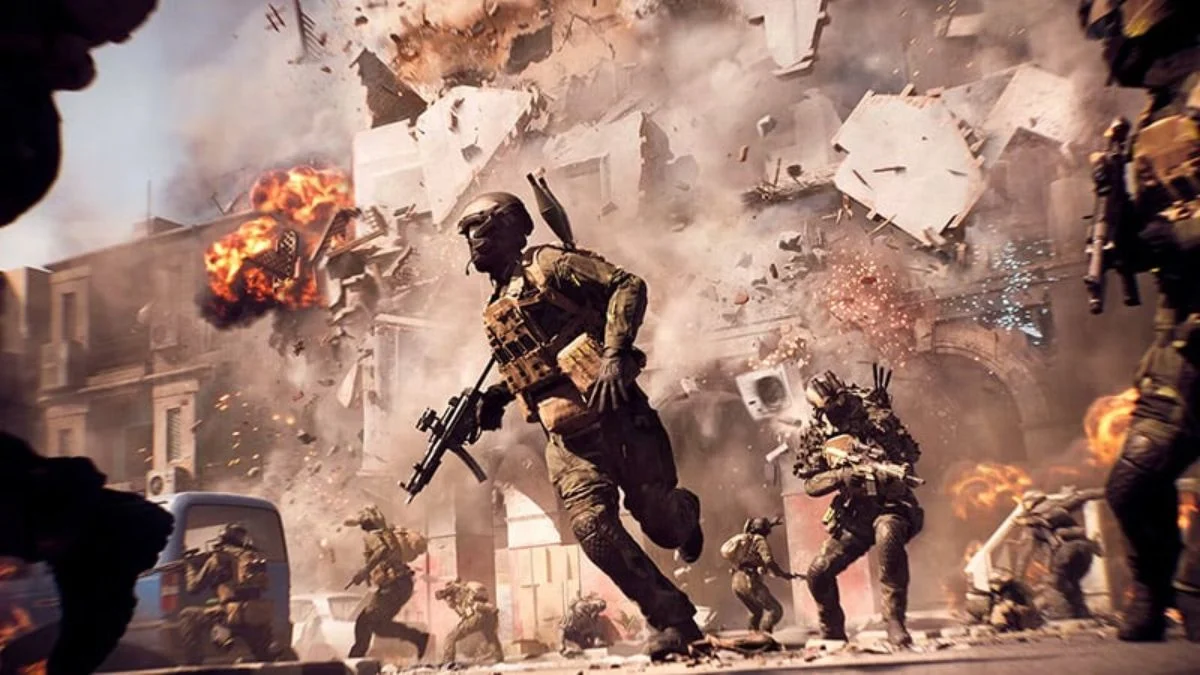
Rubber banding is the kind of problem that can turn a thrilling firefight into a frustrating mess. One moment, your soldier charges forward with precision, and the next, the game slingshots you right back like a ghost retracing its steps. This issue has quietly become one of the most discussed pain points in the community, especially on larger maps and high-player servers. But beneath the surface, the cause is often more technical than it seems.
In this guide, we’ll walk through what causes rubber banding in Battlefield 6, how CPU utilization plays a role, and the community-backed fixes that can bring back the fluid gameplay you were promised.
What Rubber Banding Really Is
Rubber banding happens when the game struggles to sync your real-time movement with the server. While many assume this is purely an internet issue, for PC players it often comes down to CPU thread management and resource allocation. The game engine behind Battlefield 6 is notorious for underutilizing available CPU cores, causing performance hiccups even on powerful rigs with fiber connections.
This is why players with excellent hardware and blazing fast internet still find themselves skipping across the map like broken holograms.
Why It’s Worse on Large Maps
The effect becomes most noticeable during large-scale battles. High player counts, intense environmental simulations, and network syncing all pile up. Your GPU might be hitting a steady 120 FPS, but if the CPU isn’t being fully tapped into, the game struggles to keep up with the pace.
That’s where this simple but surprisingly effective tweak comes in.
How to Optimize CPU Usage with a Config File
Several players have discovered that forcing the game to use all available CPU threads can help smoothen the experience dramatically. Here’s how to do it step by step:
Go to the game’s installation folder
For Steam users, it’s usually:
…/SteamLibrary/steamapps/common/Battlefield 6/
- Create a new text document
Right-click in the folder and select New → Text Document. - Rename it to user.cfg
Make sure the file type changes from .txt to .cfg. If you don’t see file extensions, enable them in your file explorer.
Paste the following lines, replacing X and Y with your actual core and thread counts:
Thread.ProcessorCount X
Thread.MaxProcessorCount X
Thread.MinFreeProcessorCount 0
Thread.JobThreadPriority 0
GstRender.Thread.MaxProcessorCount Y
- Find your core and thread counts
- Press Ctrl + Shift + Esc to open Task Manager.
- Go to the Performance tab.
- Cores = X
- Logical processors = Y.
- Press Ctrl + Shift + Esc to open Task Manager.
- Fine-tune if needed
Some users have found better stability by setting X to one less than their total core count, then adjusting Y accordingly.
Real Player Results
Many community members have reported dramatic changes after applying this tweak. CPU usage often drops from 90–99% down to a more stable 55–65%, leading to smoother motion, quicker shader compilation, and less stuttering.
Others have noticed that it works best on clean system builds or after simple optimizations like updating GPU drivers. For a few, the fix improved gameplay for several matches before server issues reintroduced the lag, proving that rubber banding isn’t always a one-size-fits-all problem.
Common Issues and Extra Fixes
- Still rubber banding after the tweak: Check if your RAM is sufficient. Players running a single low-capacity stick have found relief by upgrading to dual-channel or higher capacity setups.
- Can’t change the file extension: Enable file extensions in your Windows Explorer under “View.”
- Crashes on launch: Delete the user.cfg file and start fresh. Incorrect formatting can stop the game from booting.
- Console players: Unfortunately, this method is PC-specific. Rubber banding on consoles is typically server-side and will likely need official patches.
When to Just Switch Servers
If your settings are correct and your PC is healthy, some rubber banding may simply be the fault of unstable servers. Many players have found more consistent experiences on community servers, which tend to have better stability and less packet loss compared to quick matches.
Final Thoughts
Rubber banding in Battlefield 6 isn’t just about bad ping. It’s a cocktail of CPU underutilization, server conditions, and system performance quirks. With a simple configuration file, many players have turned a lag-ridden match into a much smoother experience.
Still, because not all lag is local, this fix isn’t a magic bullet for everyone. But it can give your system the nudge it needs to keep up with the chaos on the battlefield.
More Trending Guides:


Leave a Reply