

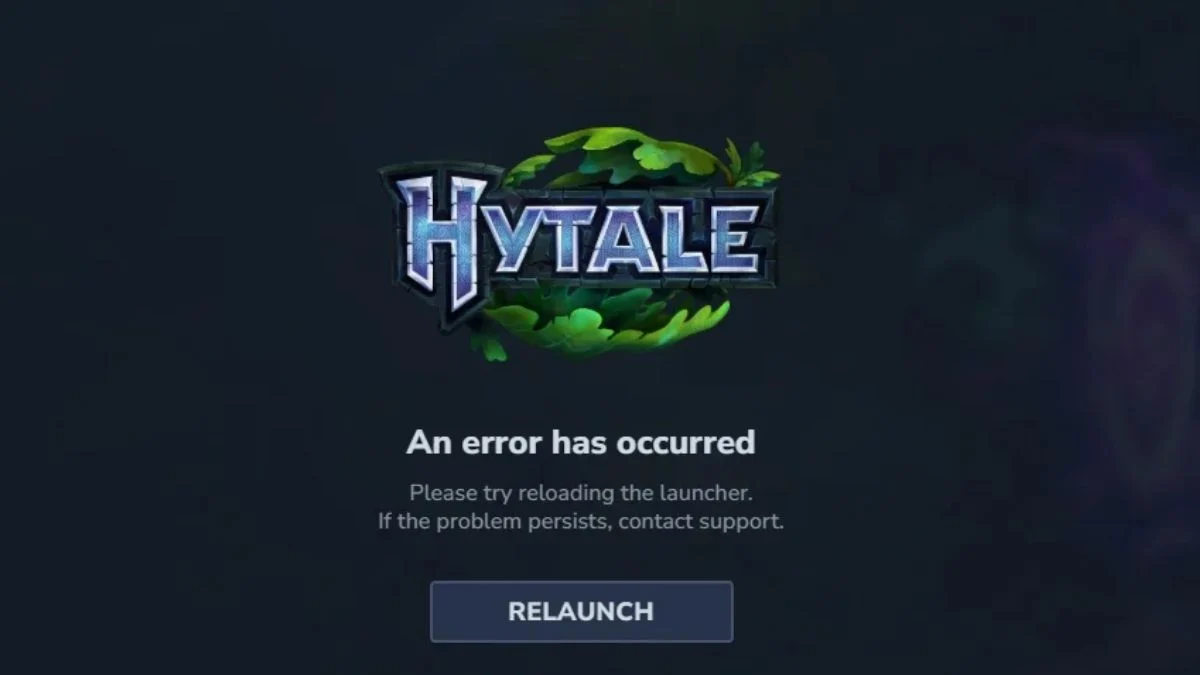
Hytale’s early access launch brought excitement and heavy traffic in equal measure. For many players, that first step into Orbis stalled at the launcher instead. If your Hytale download freezes, loops, or throws patch errors, you are not alone. This issue has appeared most often during hotfix rollouts, when thousands of players hit the same servers at once.
This guide explains why the Hytale download stuck error happens, how to fix it reliably, and what you can do to prevent it from returning. Every step stays focused on solving the download problem without guesswork or unnecessary detours.
Why the Hytale Download Gets Stuck
Most download issues trace back to server congestion rather than your PC. During major updates or hotfixes, the patch servers handle extreme demand. When connections drop mid-transfer, the launcher fails to apply patch files and stops responding.
Common symptoms include:
- The launcher freezing during download
- Errors such as “error applying update” or “patch download failed”
- Download progress stuck at zero percent or near completion
- Launcher closing unexpectedly during installation
Local permission conflicts and outdated system time can also contribute, but they are secondary causes in most cases.

First Fix to Try: Relaunch the Installer
Start with the simplest solution. It often works.
When the error appears, select the relaunch option in the launcher instead of closing it manually. Relaunching forces a fresh connection to the patch servers and resumes the download from a clean state.
If it fails once, try again. Server load fluctuates minute by minute, and a second or third attempt often succeeds once traffic eases.
Second Fix: Reinstall the Hytale Launcher
If relaunching does not resolve the issue, reinstall the launcher itself.
Open the launcher settings using the gear icon. Choose uninstall, then remove the active Hytale version if listed. If no version appears, reset game settings from the same menu.
After uninstalling, restart your PC. Download the latest launcher installer directly from the official Hytale site and install it fresh. This clears corrupted cache files that block patch verification.
Check System Time and Permissions
The January hotfix added a launcher warning for incorrect system time, which affects authentication.
Before retrying the download:
- Sync your system clock with internet time
- Run the launcher as administrator
- Confirm your antivirus or firewall does not block the launcher or Java runtime files
These steps prevent silent permission failures that stop patch files from applying correctly.
When Waiting Works Better Than Tweaking
If none of the fixes work immediately, the issue likely sits entirely server-side. During peak hours, retries may fail no matter what you change locally.
In that case, pause attempts for an hour and try again later. Players often report successful installs once server traffic drops, without changing any settings.

How to Avoid the Error in Future Updates
You can reduce the chance of running into this issue again by following a few habits:
- Download updates outside peak launch windows
- Keep the launcher updated before major patches
- Avoid interrupting downloads once they start
- Leave system time set to automatic sync
These steps do not guarantee success during extreme congestion, but they improve reliability


Leave a Reply